Create agendas and add attachments
A Group Administrator may create and update agendas for an assigned group and add the approved files that support each agenda item. District Administrators can perform the same agenda actions.
For the shared step-by-step workflow, open the Accordion Agenda Guide.
Before opening an agenda for editing, review Edit locks and safe agenda editing. Saving is the recommended way to preserve changes and release the edit lock.
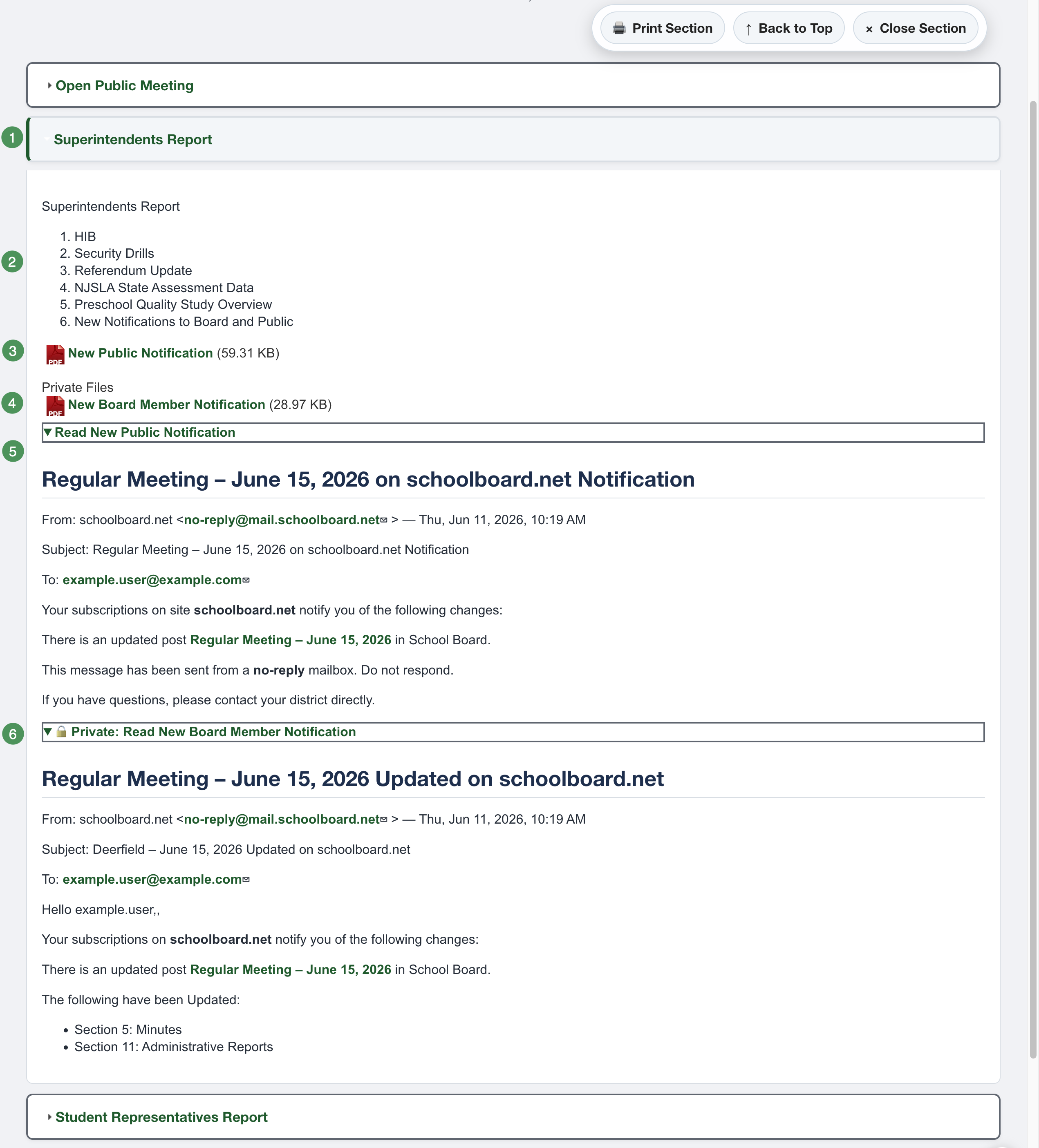
Figure SB-AAC-014. Anatomy of a completed Accordion Agenda section.
Before you begin
- Confirm that you are working in the correct group.
- Confirm the meeting title, date, time, and publication status.
- Activate the browser's spell checker and confirm the correct language.
- Use only approved public or restricted attachments.
- Confirm the intended access level before publishing an attachment.
At a glance
- Open the assigned group and begin a new agenda or open the approved agenda draft.
- Enter or verify the meeting details.
- Add agenda sections and items in the approved order.
- Add each attachment to the correct agenda item.
- Confirm the attachment title and access setting.
- Keep Visibility Private, Notifications unchecked, and Published unchecked while drafting.
- Save and review the saved draft.
- Publish and notify only after review is complete.
Recommended workflow
Use Draft Mode instead of relying on Preview. Preview is an administrator view and does not show the anonymous public experience.
For Chrome, Edge, Safari, iPad and iPhone instructions, see Browser Spell Check and Proofreading.
Before publishing
- Confirm the correct group and meeting.
- Confirm that agenda sections are in the intended order.
- Confirm that each attachment is attached to the correct item.
- Confirm that public and restricted materials have the correct access setting.
- Review the saved draft and open every attachment.
- Sign out after publication and verify the public view.
Protect restricted material
Do not publish an attachment until its access setting has been verified. If you are uncertain whether a file should be public, stop and confirm with the District Administrator or other designated district approver.
Correct an attachment placed in the wrong area
When a file was added under the wrong public or private heading, use the Switch to Private or Switch to Public checkbox and save. The file moves automatically and does not need to be uploaded again.
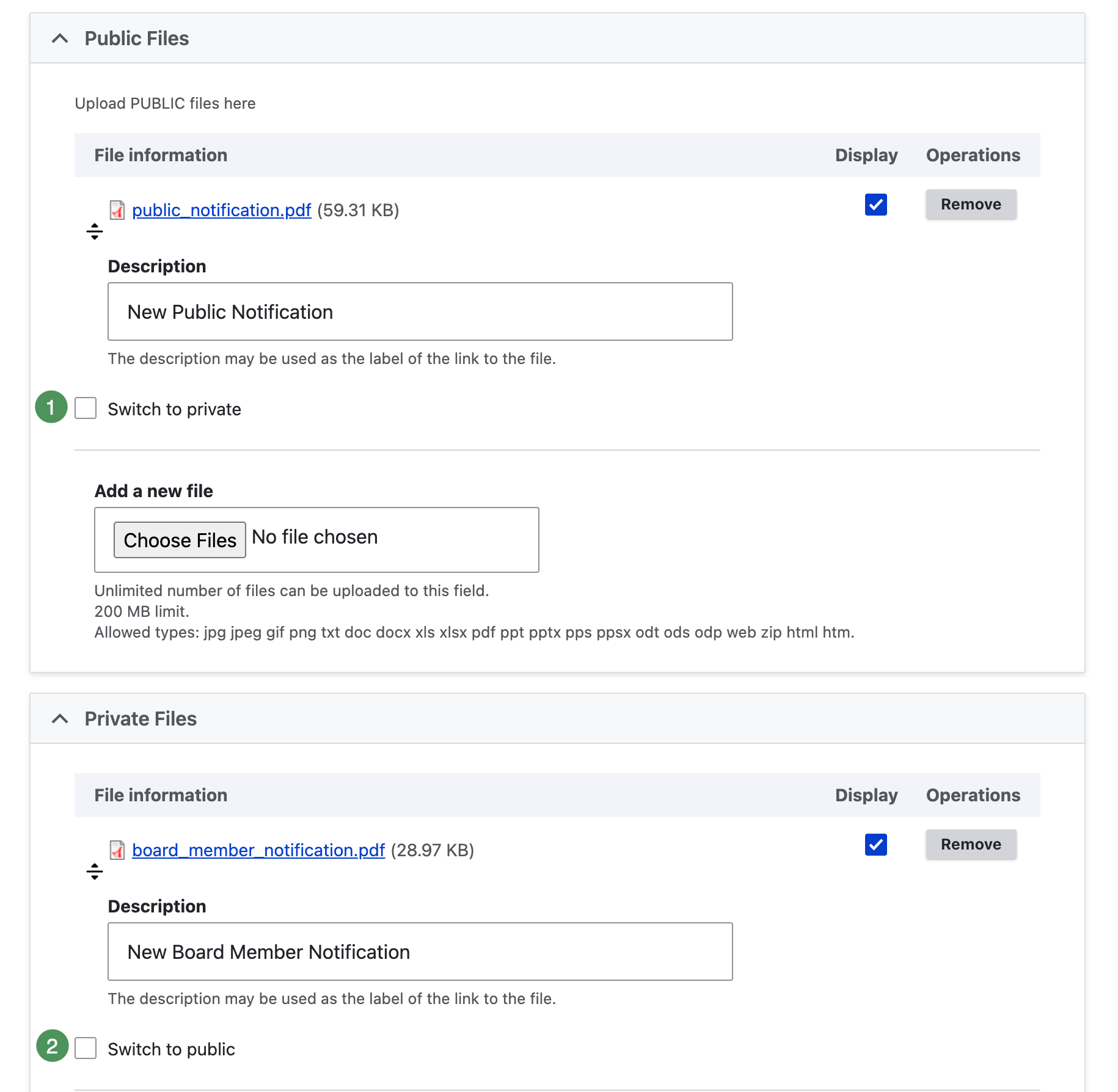
Figure SB-AAC-019. Move an existing attachment between public and private areas.
Verify the published result
After saving the publication settings, the site displays the agenda. Sign out and reopen it to confirm the anonymous public view.
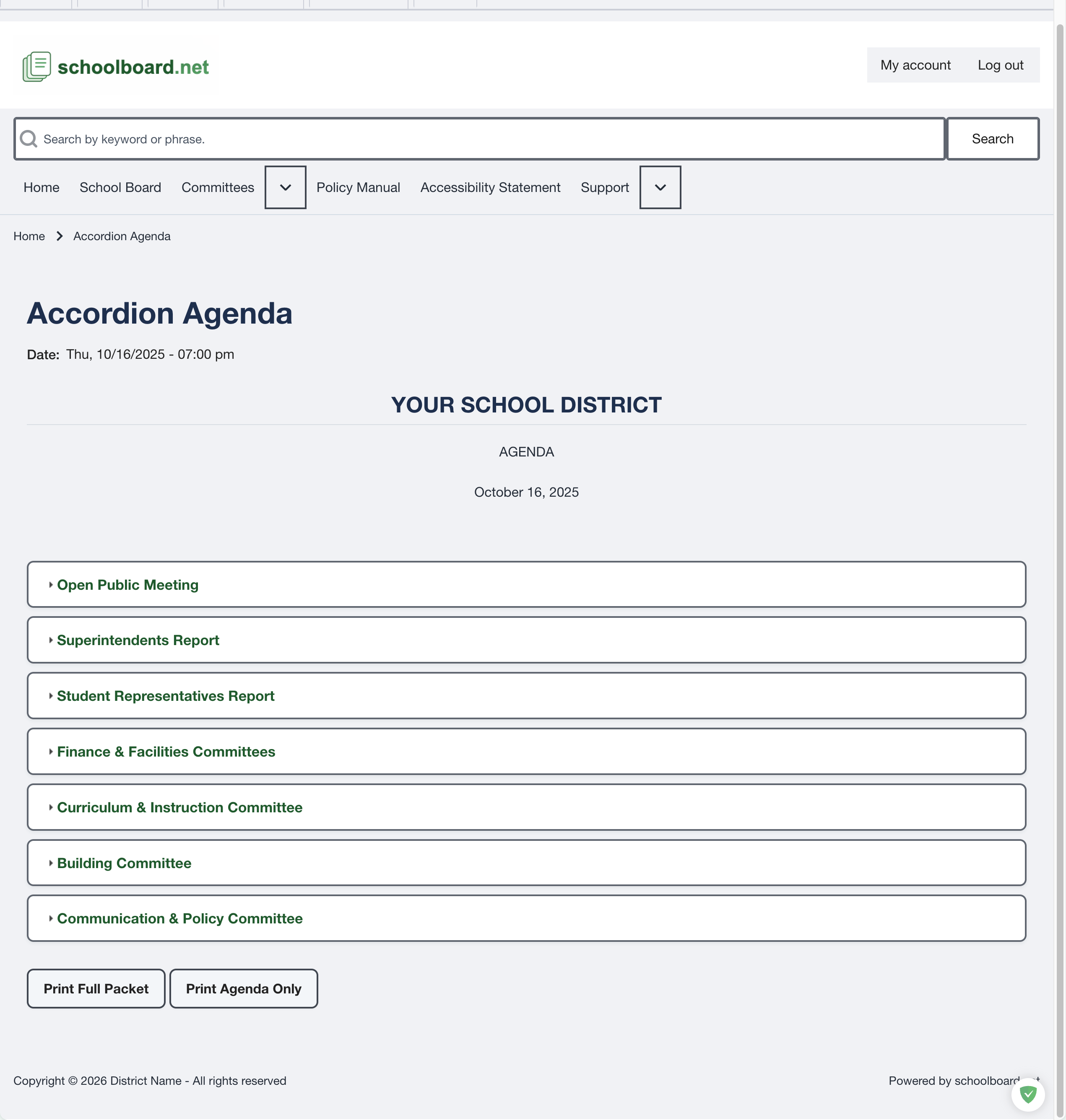
Figure SB-AAC-020. Verify the published agenda after signing out.