Safety and troubleshooting
Agenda edit lock problems
| Problem | What to do |
|---|---|
| A warning says another administrator is editing the agenda | Note the editor's name and lock duration. Contact that person and ask them to Save or select Unlock if no changes were made. |
| The named editor is still working | Wait. Do not try to work around the active lock. |
| The editor finished, but the lock remains | Reopen or refresh the agenda. If it is still locked, contact a District Administrator. |
| The content lock is stuck | Only a District Administrator can break another user's lock. This is a last resort after confirming that nobody is editing and no unsaved work needs to be preserved. |
See Edit Locks and Safe Agenda Editing for the complete procedure and screenshots.
Browser spell check is not working
Confirm that spell checking and the intended language are enabled in the browser or device. Work in the normal visual editor rather than Source view, then refresh or reopen the form after changing a browser setting.
Follow Browser Spell Check and Proofreading for Chrome, Edge, Safari, iPad and iPhone instructions and a complete troubleshooting sequence. If a district-managed browser prevents changes, contact district technical support.
The user does not appear in autocomplete
- Confirm the spelling of the username.
- Confirm that the person already has a schoolboard.net account.
- Contact a District Administrator if the account is missing or blocked.
The user still cannot see group materials
- Confirm that the correct group was changed.
- Confirm that the username appears in the Members list.
- Ask the user to sign out and sign in again.
- Contact a District Administrator if access remains incorrect.
The wrong membership was removed
Return to Add member and restore the correct existing user. Notify the District Administrator if the change affected access during an active meeting or review period.
An operation is not available
Do not try to work around missing permissions. Confirm that you are in the assigned group and contact a District Administrator.
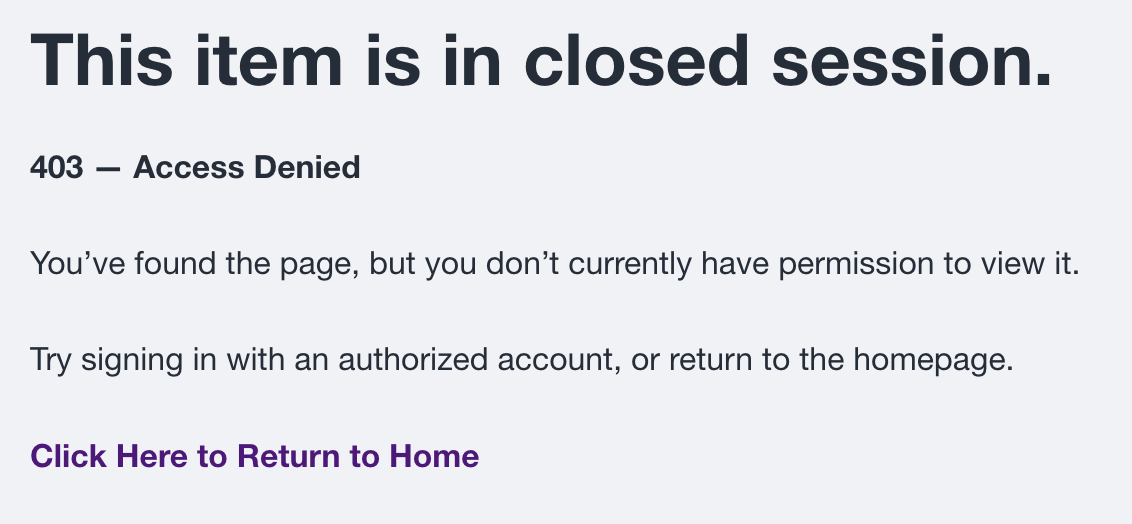
403 — Access Denied
A 403 message means the content exists, but the current account does not have permission to view it.
- Confirm that you are signed in with the correct account.
- Confirm that you are a Group Administrator or member of the affected Group.
- Confirm that the agenda and item are assigned to the expected Group.
- Contact a District Administrator if your access should be changed.
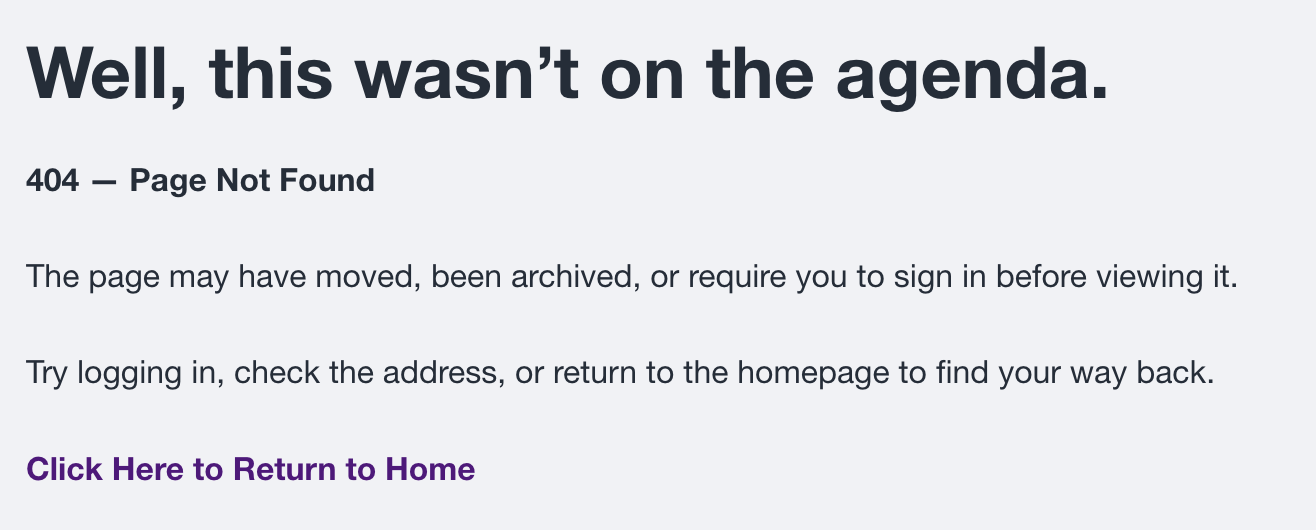
404 — Page Not Found
A 404 message means the address does not currently lead to an available page. The content may have moved, been archived, become unpublished, or have an incorrect Group assignment.
- Return to the Group home page and locate the agenda again.
- Check Drafts & Templates and select Show More.
- Ask a District Administrator to search Content, verify the newest revision, and confirm Group assignment and publication status.
- Do not recreate the agenda until the original has been located or confirmed missing.
Safety checklist
- Use only the access assigned to you.
- Verify the group and username before saving.
- Avoid changing unfamiliar roles or URL aliases.
- Never share administrator credentials.
- Sign out on shared devices.
- Save agenda changes to preserve the work and release the edit lock.
- Escalate a confirmed stuck content lock to a District Administrator.