Remove a group member
Removing membership affects only the selected group. It does not block, cancel, or delete the user account.
Open the membership operation
- Open the correct group's Members tab.
- Find the exact username.
- Open the member's Operations menu.
- Select Remove member.
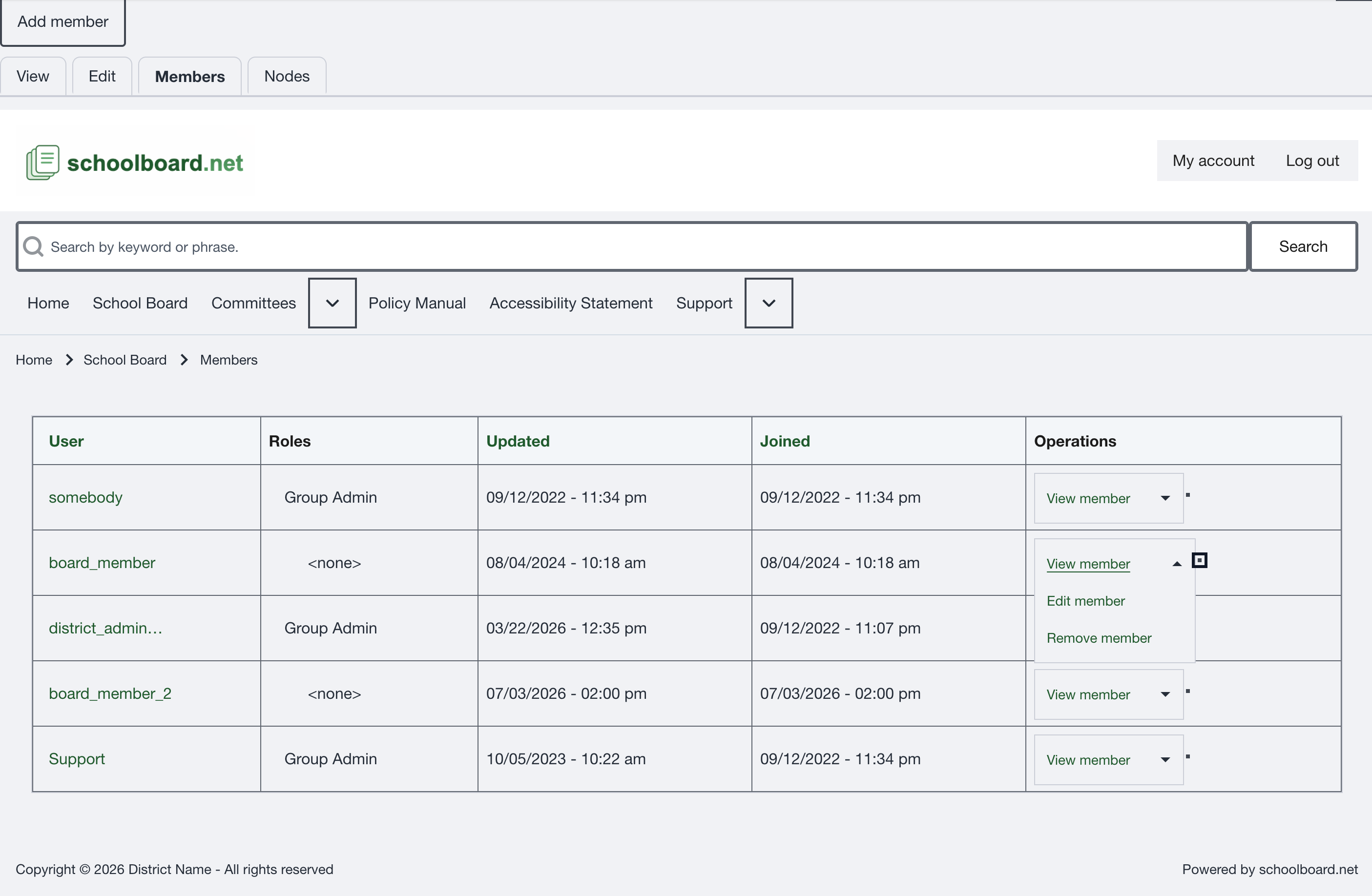
Figure SB-DST-017. Open the membership Operations menu.
Edit member is outside this role
The shared Operations menu may display Edit member. This guide authorizes Group Administrators to add and remove membership only. Contact a District Administrator when a membership role must be changed.
Confirm removal
- Read the confirmation and verify the user and group.
- Select Delete to remove the membership.
- Select Cancel if anything is incorrect or uncertain.
- Return to the Members list and verify that the membership is gone.
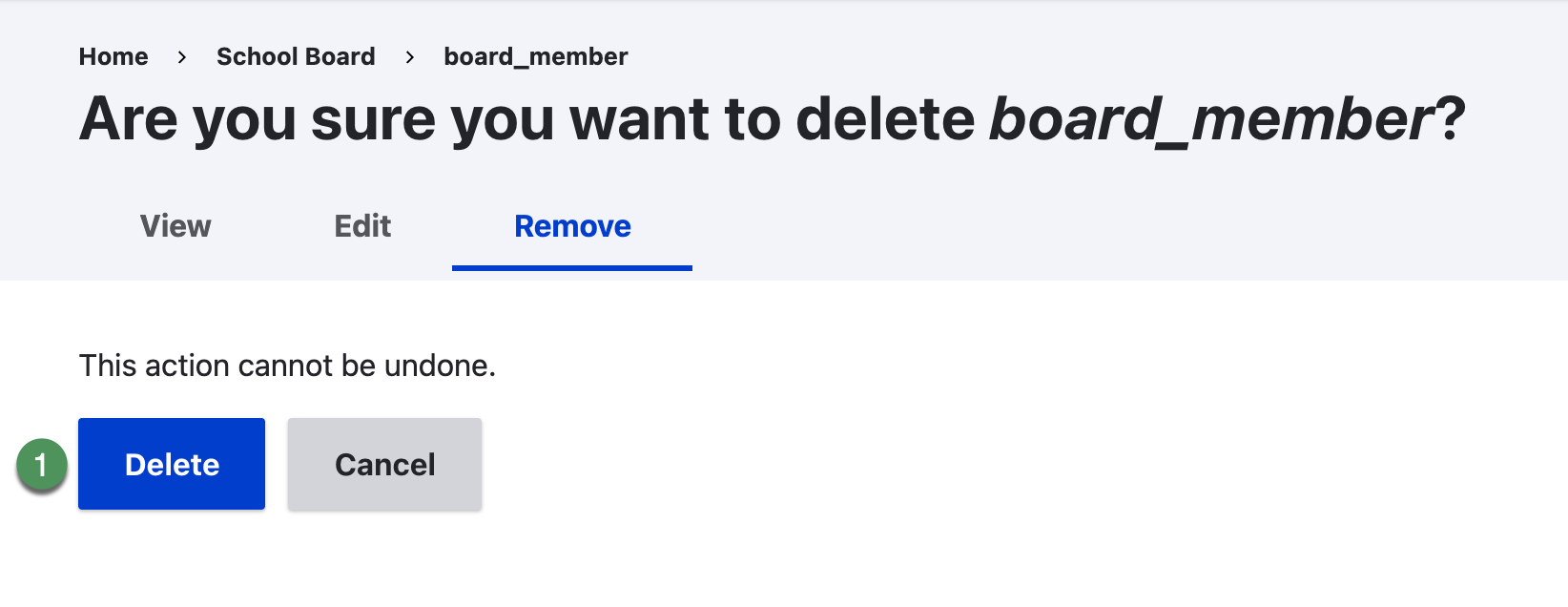
Figure SB-DST-020. Confirm or cancel removal of the group membership.
Do not continue if uncertain
If the username or group is not the one you intended, select Cancel and start again.