Templates and Cloning
Most districts maintain a separate master template for each recurring meeting type. Templates preserve the district's approved structure and dramatically reduce preparation time.
Common templates
- Regular Board Meeting
- Regular Board Meeting with Closed Session
- Work Session
- Special Meeting
- Budget Workshop
- Organizational Meeting
- Committee Meeting
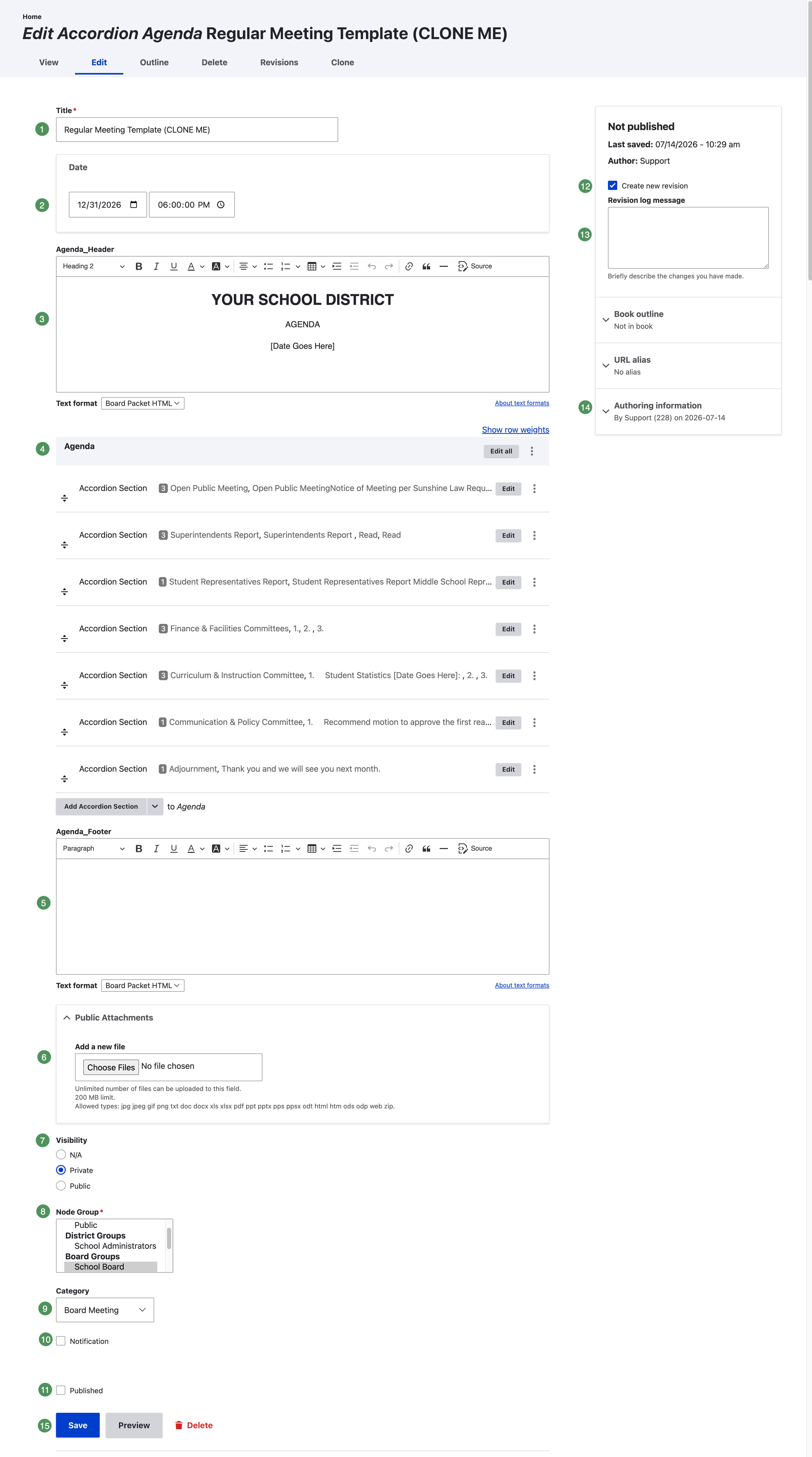
Figure SB-AAC-002. A reusable master template may contain recurring sections, agenda items, and expandable HTML.
Numbered template fields
- Title — identifies the master template or meeting agenda.
- Date and time — set these for the meeting created from the template.
- Agenda Header — contains the district heading, agenda label, date, and other approved introductory information.
- Agenda — contains the Accordion Sections that form the meeting structure.
- Agenda Footer — optional information displayed after the agenda content; leave it blank when the district does not use a footer.
- Public Attachments — meeting-level files available to everyone after publication.
- Visibility — keep Private while drafting; change to Public only when ready to publish.
- Group assignment — click the correct Board or committee Group even when it appears highlighted.
- Category — identifies the approved content category, such as Board Meeting.
- Notification — sends notices to the audience determined by visibility and Group assignment.
- Published — leave unchecked during Draft Mode; select only after review is complete.
- Create new revision — preserves a revision record when the agenda is changed.
- Revision Log message — briefly explains what changed and appears in revision notifications.
- Authoring information — records the content author and creation information.
- Save, Preview, and Delete — save preserves the current work; Preview is an administrator view; Delete removes content and should be used only under an approved procedure.
Template settings are a starting point
Review every numbered field after cloning. Do not assume the clone inherited a valid Group assignment, meeting date, visibility, notification, or publication setting.
Find the correct template
Open Drafts & Templates from the group home page. The list sorts by meeting date in reverse order, newest first.
- Current drafts appear near the top.
- Give permanent templates an intentionally older date so they remain near the bottom.
- Select Show More when a template is not immediately visible.
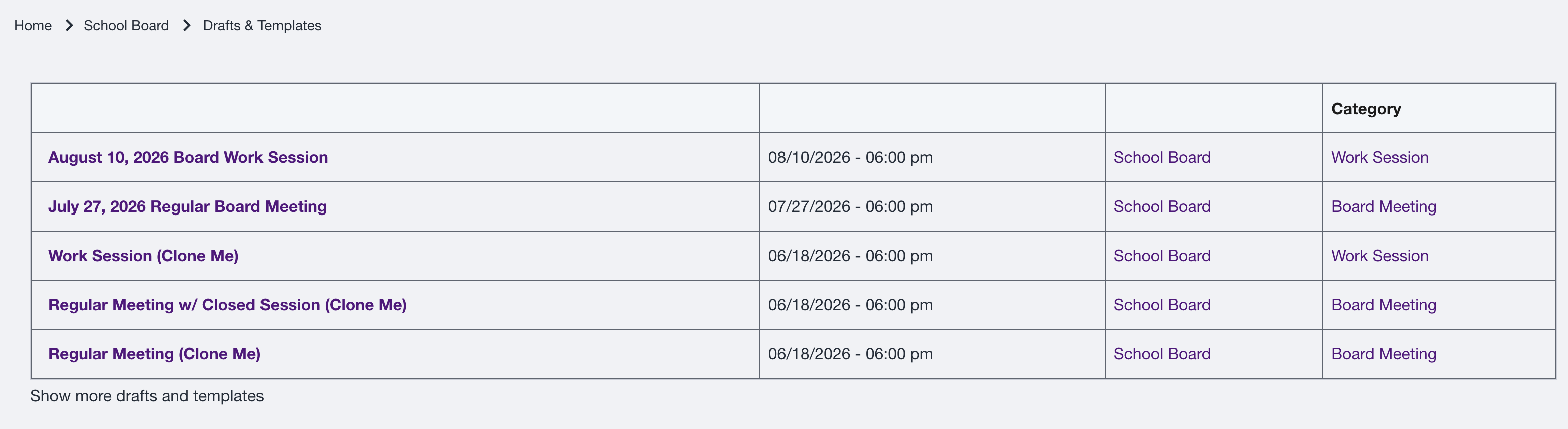
Figure SB-AAC-010. Select Show More to display older templates.
Clone the template
- Open the approved template for the meeting type.
- Select Clone from the top menu.
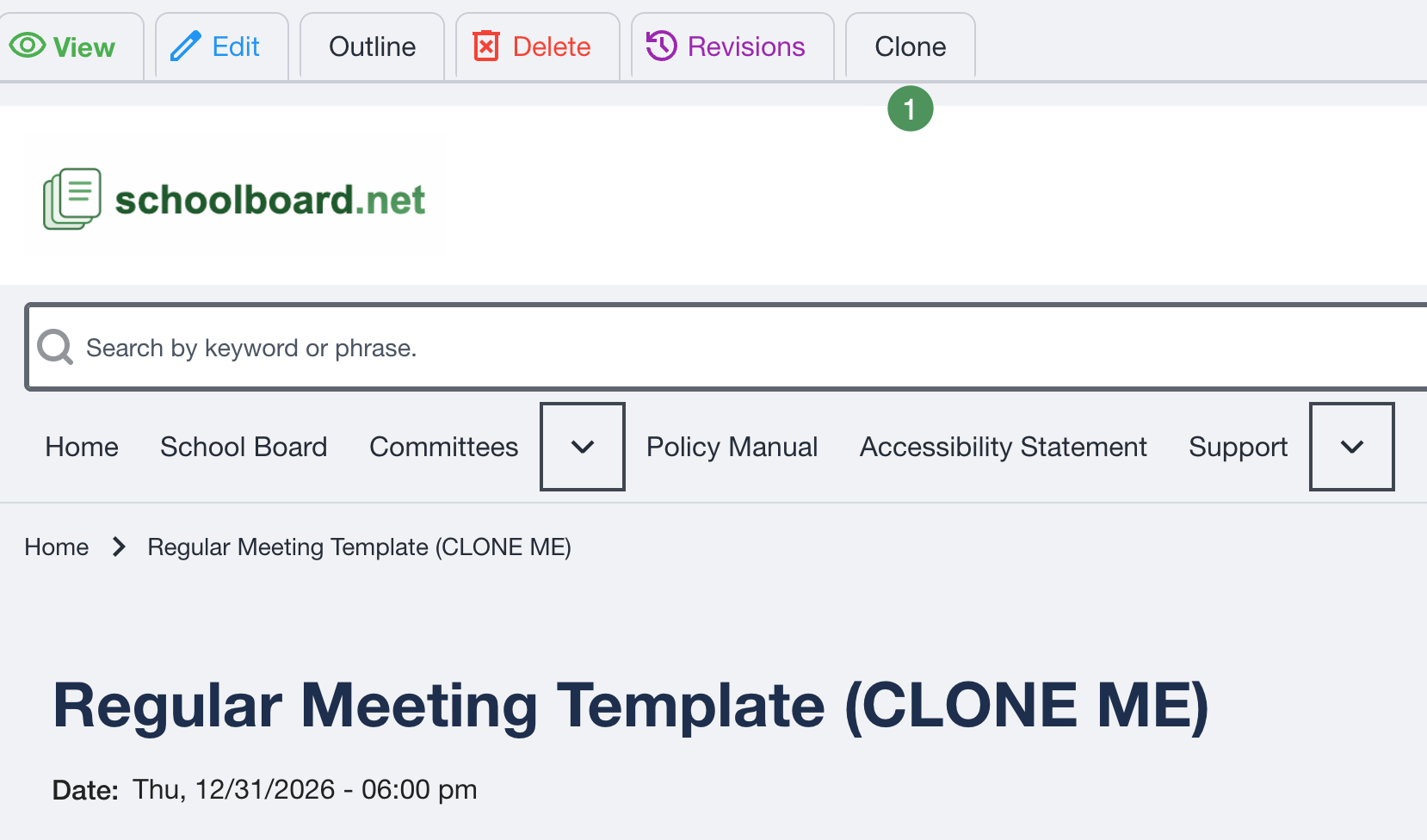
Figure SB-AAC-008. Select Clone from the template's top menu.
- Replace the Clone of... title with the correct meeting title.
- Update the date, time, agenda header, and placeholder text.
- Click the correct Group, even if it already appears highlighted.
- Confirm Draft Mode settings.
- Save. The independent agenda appears in Drafts & Templates.
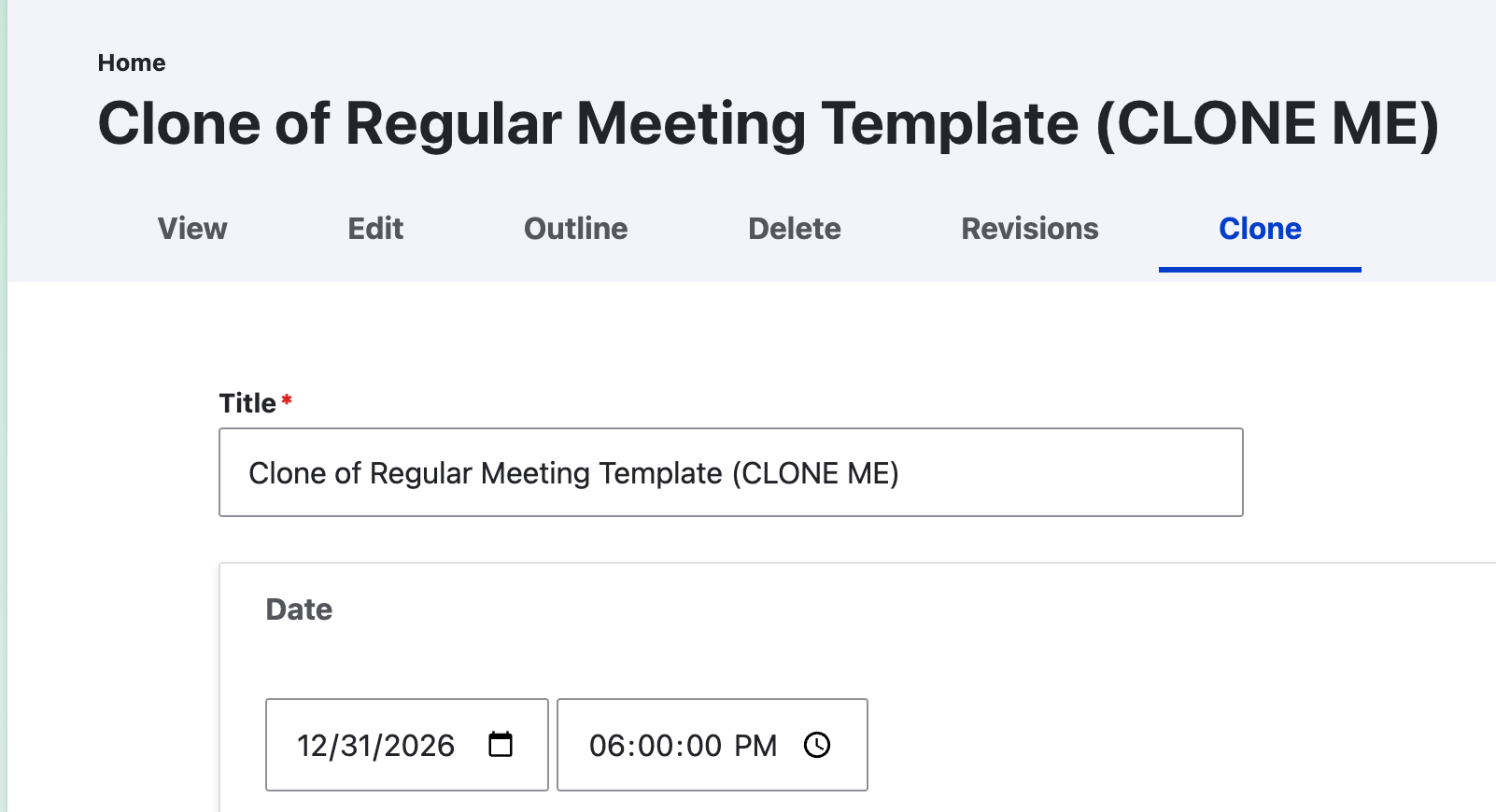
Figure SB-AAC-009. Update the clone and actively select its Group.
A highlighted Group may not be selected
Always click the destination Group before saving. An unassigned agenda can appear to be missing, fail to display on the expected group page, and notify the wrong audience or no audience.
Protect master templates
- Limit structural template changes to designated administrators.
- Never convert the master template into a current meeting agenda.
- Change a template only when the district intentionally changes its standard format.
- Maintain distinct templates for meeting types with different structures.
- Include blank Accordion Sections for recurring agenda areas so administrators can add the current meeting's items without rebuilding the structure.
- Add reusable blank Expandable HTML blocks when they reduce repetitive work.
Build useful blank sections into the template
A well-designed template should contain the recurring section headings and enough blank Agenda Item or Expandable HTML components to make meeting preparation easy. After cloning, complete the sections needed for that meeting and remove unused blank sections before publication.
Need a new template?
Send schoolboard.net Support an approved outline, Word document, or sample agenda. The “magical elves” can build a reusable template, often providing the quickest way to learn the system and establish a consistent starting point.