Replace Attachments or Change Access
Use these procedures to correct an attachment without rebuilding its Agenda Item.
Replace an attachment safely
Use a new filename for the replacement so browsers and search indexes recognize it as a new version.
- Edit the Agenda Item containing the old file.
- Select Remove beside the old attachment.
- Upload the approved replacement in the same public or private area.
- Give it a new filename, such as
high-school-design-v2.pdf. - Confirm its description and Display setting.
- Save in Draft Mode.
- Reopen and test the replacement.
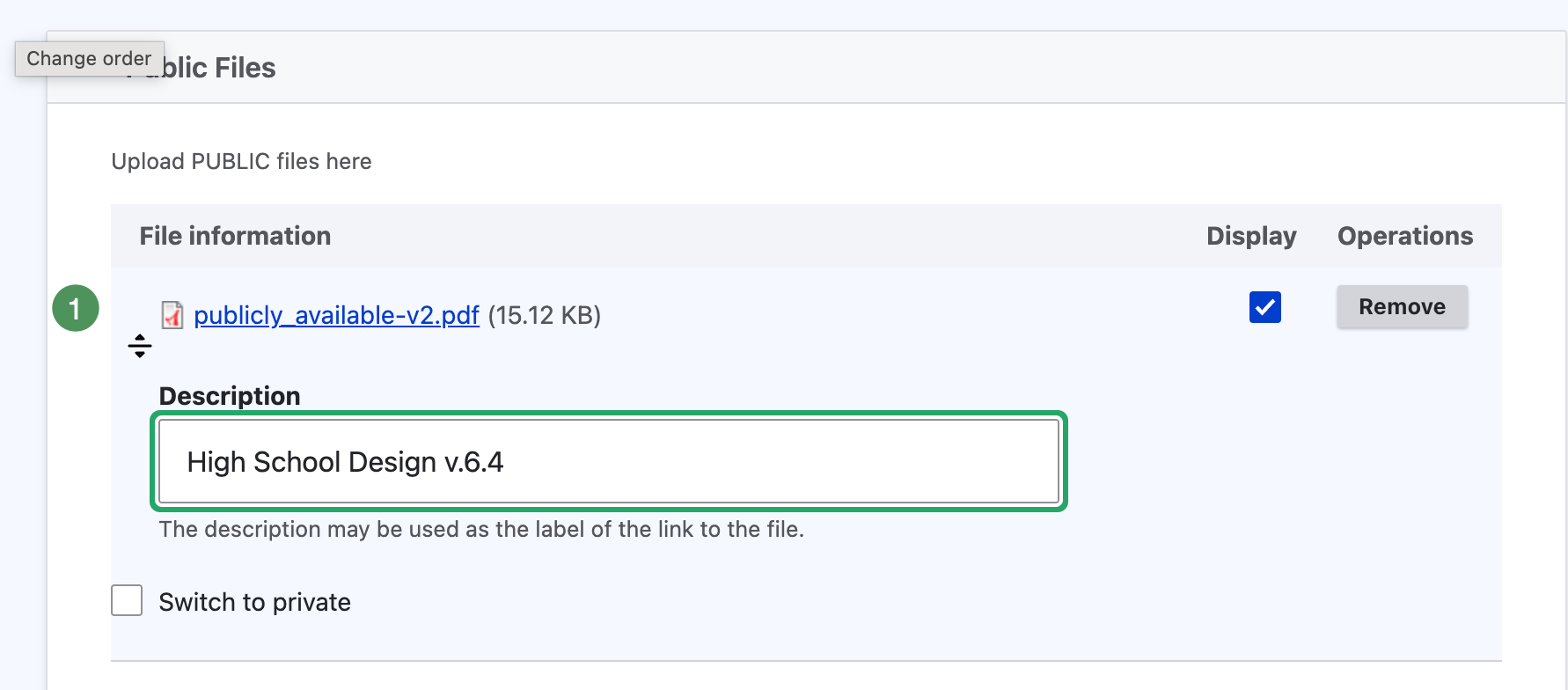
Figure SB-AAC-018B. Use a new filename and meaningful description.
Open the replacement
Confirm that the saved file is the approved version, opens correctly, and remains under the intended Agenda Item and access level.
Move a file between public and private
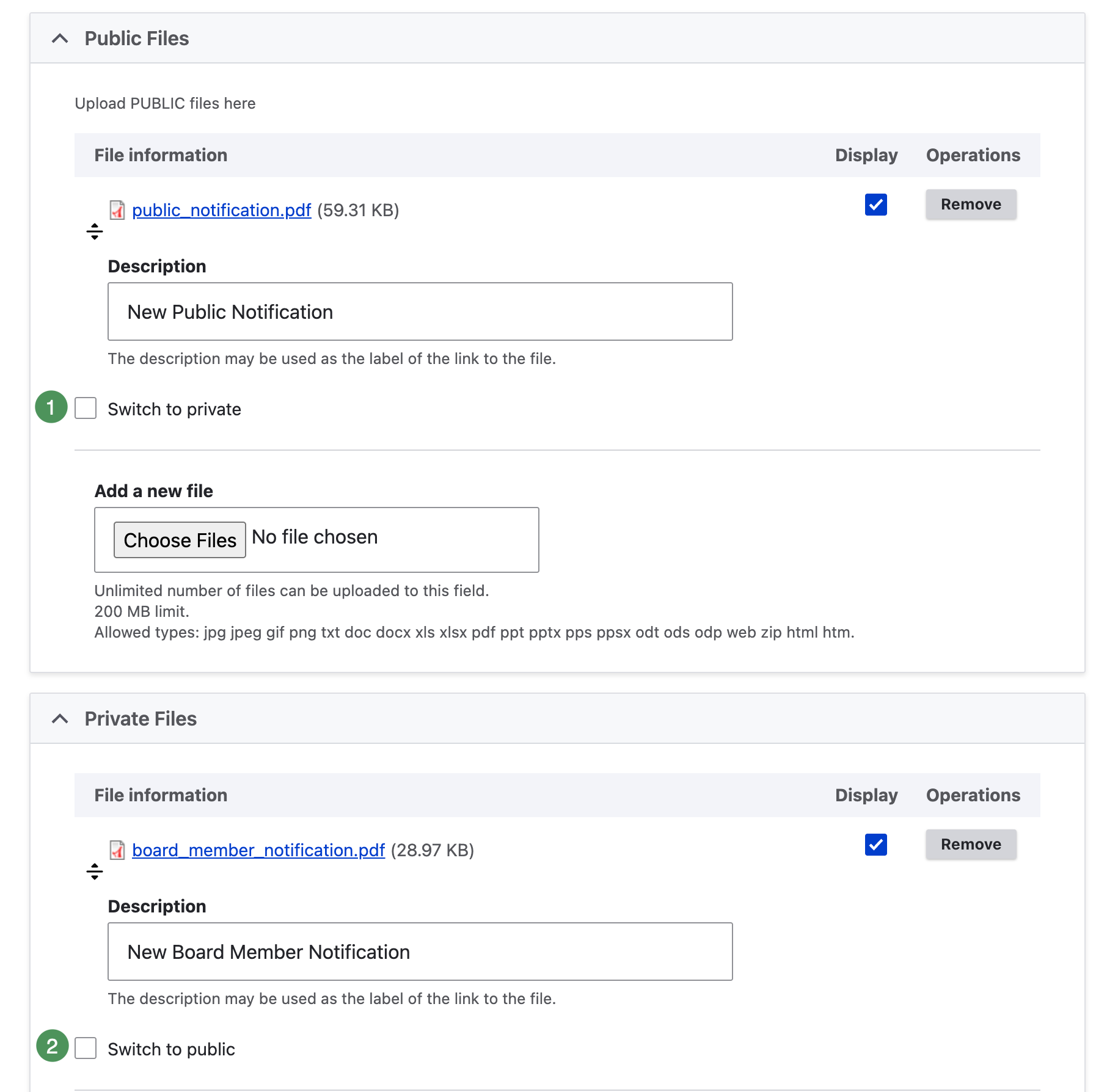
Figure SB-AAC-019. Move an attachment when the agenda is saved.
- Switch to private moves a public attachment into Private Files.
- Switch to public moves a private attachment into Public Files.
Move public to private
- Select Switch to private beside the public file.
- Save.
- Reopen the Agenda Item and confirm the file appears under Private Files.
Move private to public
- Confirm approval for public release.
- Select Switch to public beside the private file.
- Save.
- Reopen the item and confirm the file appears under Public Files.
- Verify it from the signed-out public view after publication.
Public release requires deliberate review
Switch to public changes who may access the file. Confirm authorization and contents before selecting it.
Correction checklist
- [ ] The old file was removed when replacing it.
- [ ] The replacement uses a new filename.
- [ ] Its description and Display setting are correct.
- [ ] It opens successfully after saving.
- [ ] It belongs to the intended Agenda Item.
- [ ] Its public or private access is correct.