Edit Locks and Safe Agenda Editing
schoolboard.net prevents two administrators from editing the same agenda at the same time. When an administrator opens an agenda for editing, the system locks that agenda until the editor saves it or deliberately unlocks it.
When you begin editing
After you open the Edit form, a status message confirms that the content is locked against simultaneous editing.
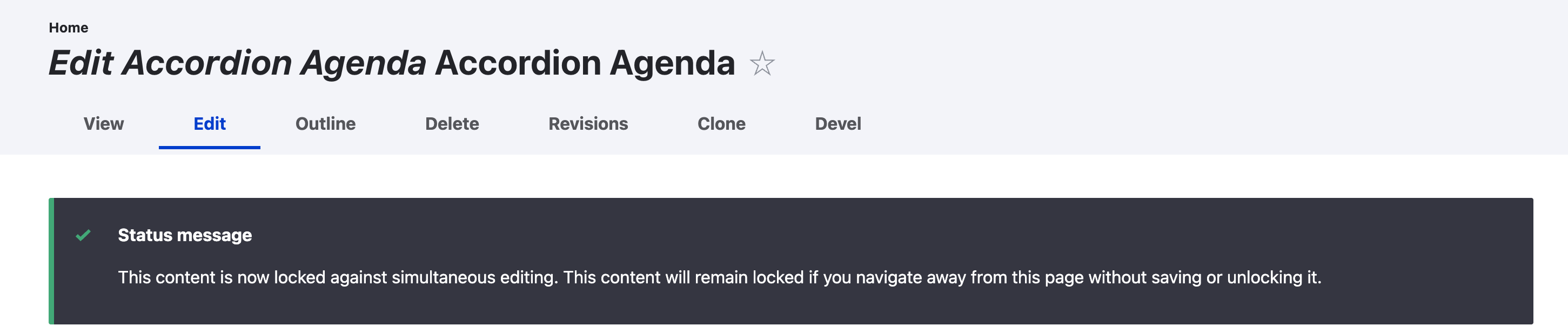
Figure SB-AAC-021. Opening the Edit form locks the agenda for the current editor.
The lock protects your work from being overwritten by another administrator. It also remains active if you navigate away without saving or unlocking the agenda.
Best practice: Save to release the lock
Complete your work and select Save. Saving preserves the changes and releases the edit lock. Do not leave the Edit form open longer than necessary.
When another administrator has the lock
If another administrator tries to edit the same agenda, a warning identifies:
- the user who currently has the agenda locked; and
- how long the lock has been active.
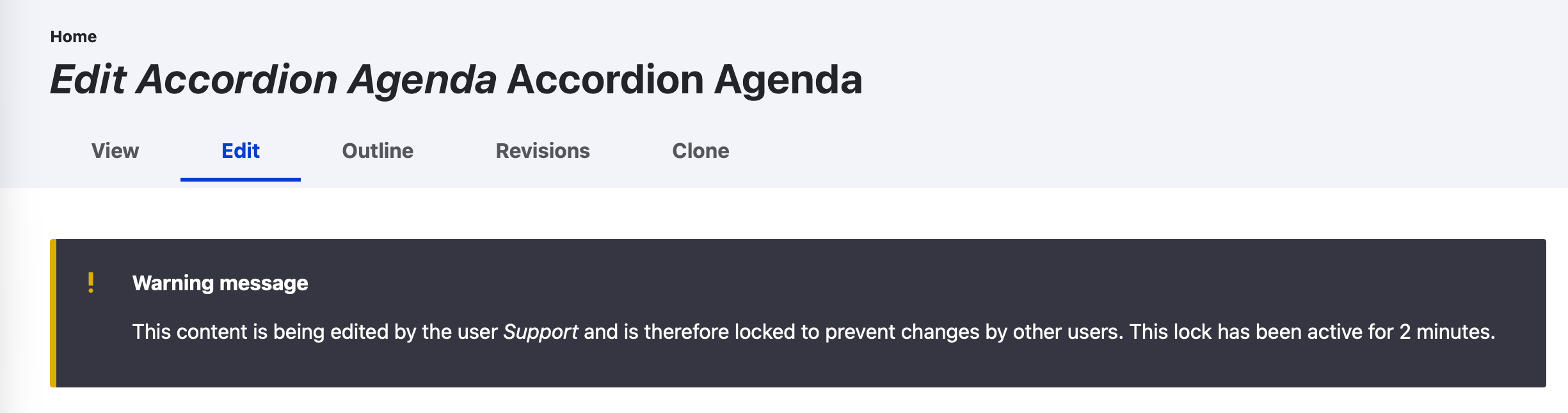
Figure SB-AAC-022. The warning identifies the current editor and the age of the lock.
Do not attempt to make competing changes. Contact the named user and ask that person to:
- finish the current work;
- select Save to preserve the changes and release the lock; or
- select Unlock if no changes were made and nothing needs to be saved.
Refresh or reopen the agenda after the other administrator releases the lock.
Do not work around an active lock
The lock indicates that another administrator may have unsaved work. Coordinate with the named editor before proceeding so content is not lost or overwritten.
If the lock becomes stuck
If the named editor has saved or unlocked the agenda but the lock remains, contact a District Administrator. Only a District Administrator may break another user's stuck content lock.
Breaking a lock is a last-resort recovery procedure. Before breaking it, the District Administrator must:
- identify the user shown in the lock warning;
- contact the user when possible;
- confirm that the user—and anyone else with access—is not editing the content;
- confirm that no unsaved work needs to be preserved; and
- break the lock only after those checks are complete.
Last resort: District Administrator only
Breaking a stuck content lock may interfere with unsaved work. Only a District Administrator can perform this action, and only after confirming that nobody is editing the content. Never use it to bypass an active editor or the normal Save and Unlock workflow.
Use Unlock only when no changes were made
The Unlock button appears at the bottom of the Edit form with the Save and Preview controls.

Figure SB-AAC-023. Use Unlock only when the Edit form can be closed without saving changes.
Select Unlock when you opened the form but made no changes and do not need to save. If you changed anything that should be retained, select Save instead.
After a successful unlock, schoolboard.net displays Unlocked. Anyone can now edit this content.
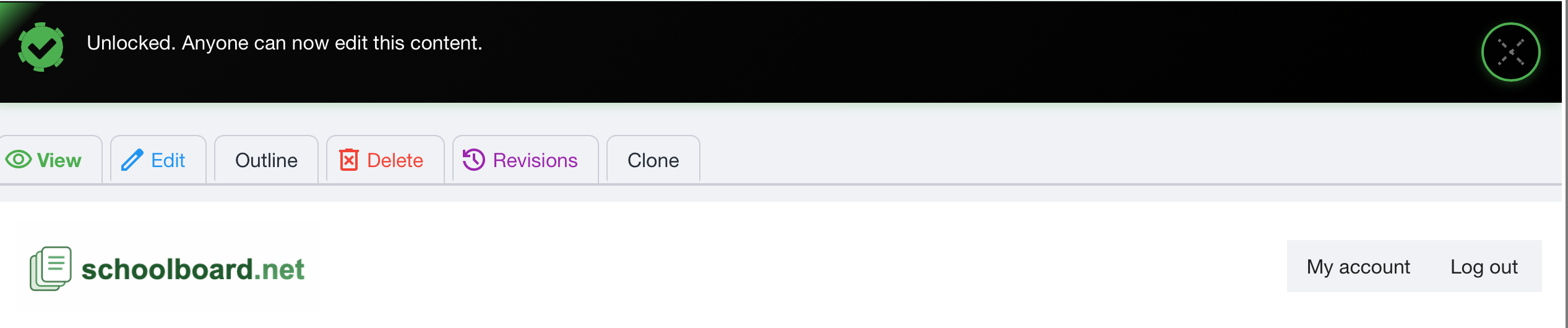
Figure SB-AAC-024. The confirmation message verifies that the lock was released.
After seeing this message, another authorized administrator may reopen the agenda for editing.
Safe editing checklist
- Confirm that you opened the correct agenda before editing.
- Coordinate ownership when several administrators are preparing one meeting.
- Save regularly while working in Draft Mode.
- Save before leaving the Edit form when changes must be retained.
- Use Unlock only when no changes were made.
- If a lock warning appears, contact the named editor rather than starting competing work.
- Escalate a stuck lock to a District Administrator; only that role can break it as a last resort.