Safety and troubleshooting
Administrator safety
- Use individual accounts and multifactor authentication when available.
- Apply the least access needed for the person's job.
- Confirm selected usernames before bulk actions.
- Never send passwords through ordinary email.
- Block access promptly when authorization ends.
- Record who approved District Admin and Group Admin access.
- Send every District Administrator role request in writing by email to schoolboard.net Support.
- Review District Administrator assignments periodically and keep the recommended total to two or three per district.
- Review administrator assignments periodically.
Keyboard and accessibility
- Press Tab and Shift+Tab to move through controls.
- Press Enter to open links or activate focused controls.
- Use the visible focus indicator to confirm the current control.
- Use form labels and headings with a screen reader.
- Increase browser zoom when needed.
Troubleshooting
| Problem | What to check |
|---|---|
| User cannot sign in | Username, email address, status, and identity before resetting a password |
| Private material is missing | Membership in the correct group |
| User has too much access | Site roles and every group membership |
| Account already exists | Edit the existing account; do not create a duplicate |
| Membership removed accidentally | Add the existing user back to the approved group |
| Group type is unclear | Stop and ask the site owner or support team |
| Agenda is missing from a group | Search Content, choose the newest revision, and verify the assigned Group |
| Agenda is locked by another administrator | Contact the named editor and ask that person to Save or Unlock |
| Edit lock remains after the editor finished | Confirm nobody is editing, then follow the stuck-lock procedure |
| Browser spell check does not appear | Confirm the browser or device setting, intended language, and normal visual editing mode; consult the shared browser spell-check instructions |
Resolve an agenda edit lock
When a lock warning appears:
- identify the user and the lock duration shown in the warning;
- contact the named editor;
- ask the editor to Save or select Unlock if no changes were made; and
- reopen the agenda after the editor releases the lock.
If the lock remains stuck, only a District Administrator can break it. Breaking another user's content lock is a last resort. Confirm that nobody is editing and no unsaved work needs to be preserved before breaking the lock.
See Edit Locks and Safe Agenda Editing for the complete procedure and screenshots.
Resolve browser spell-check problems
schoolboard.net relies on the browser and operating system for spelling assistance. Follow Browser Spell Check and Proofreading for Chrome, Edge, Safari, iPad and iPhone activation and troubleshooting.
If a browser setting is unavailable or cannot be changed, confirm whether the district manages it through browser or device policy. Use only district-approved writing services, especially when the content is private or confidential.
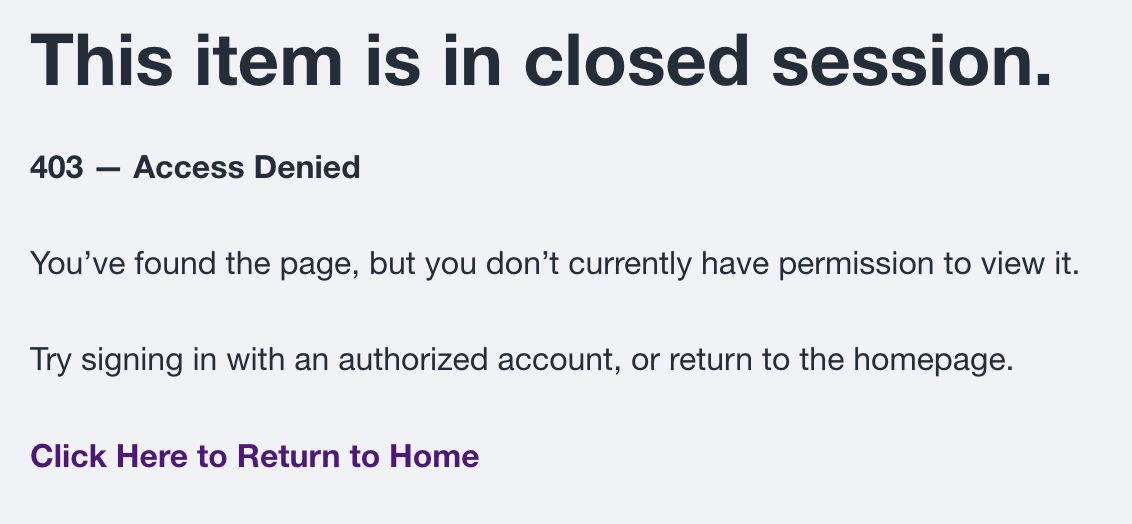
403 — Access Denied
A 403 message means the content exists, but the current account does not have permission to view it.
- Confirm the user's identity and that the correct account is signed in.
- Review site roles, Group membership, and Group Administrator assignment.
- Confirm that the content belongs to the intended Group.
- Apply only the access approved for the user's responsibilities.
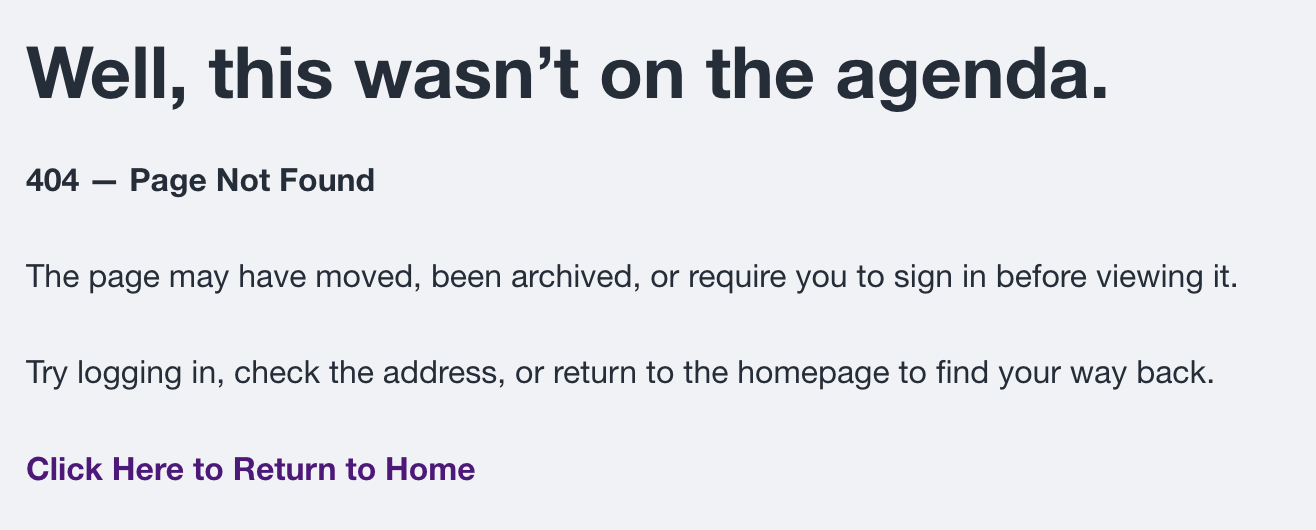
404 — Page Not Found
A 404 message means the address does not currently lead to an available page. The content may have moved, been archived, become unpublished, use an outdated link, or have an incorrect Group assignment.
- Search the administrative Content list.
- When revisions share a title, select the newest revision.
- Verify Group assignment, visibility, and publication status.
- Open the content from its current Group page rather than relying on an old saved link.
- Do not recreate content until the original has been located or confirmed missing.
When requesting help, include the site address, username, group, expected result, actual result, and a screenshot with passwords and private information removed.