Find Missing Content or Agendas
District Administrators can use Content to search the complete site-wide content list, including items that do not appear on the expected group page.
Search the Content list
- Select Manage, then Content.
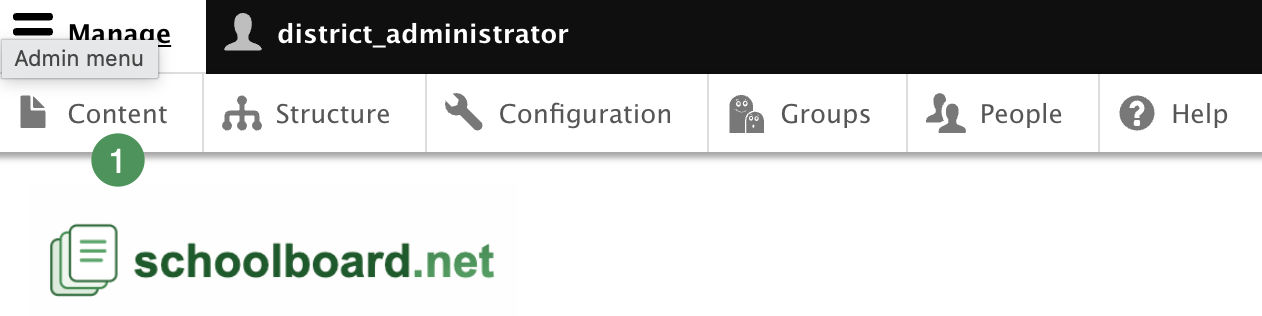
Figure SB-DST-023. Open the site-wide Content list.
- Search by title or part of the title.
- Filter by content type or publication status when useful.
- Sort by Updated, or scroll through the list.
- Review the assigned Group, author, status, and updated date before opening the item.
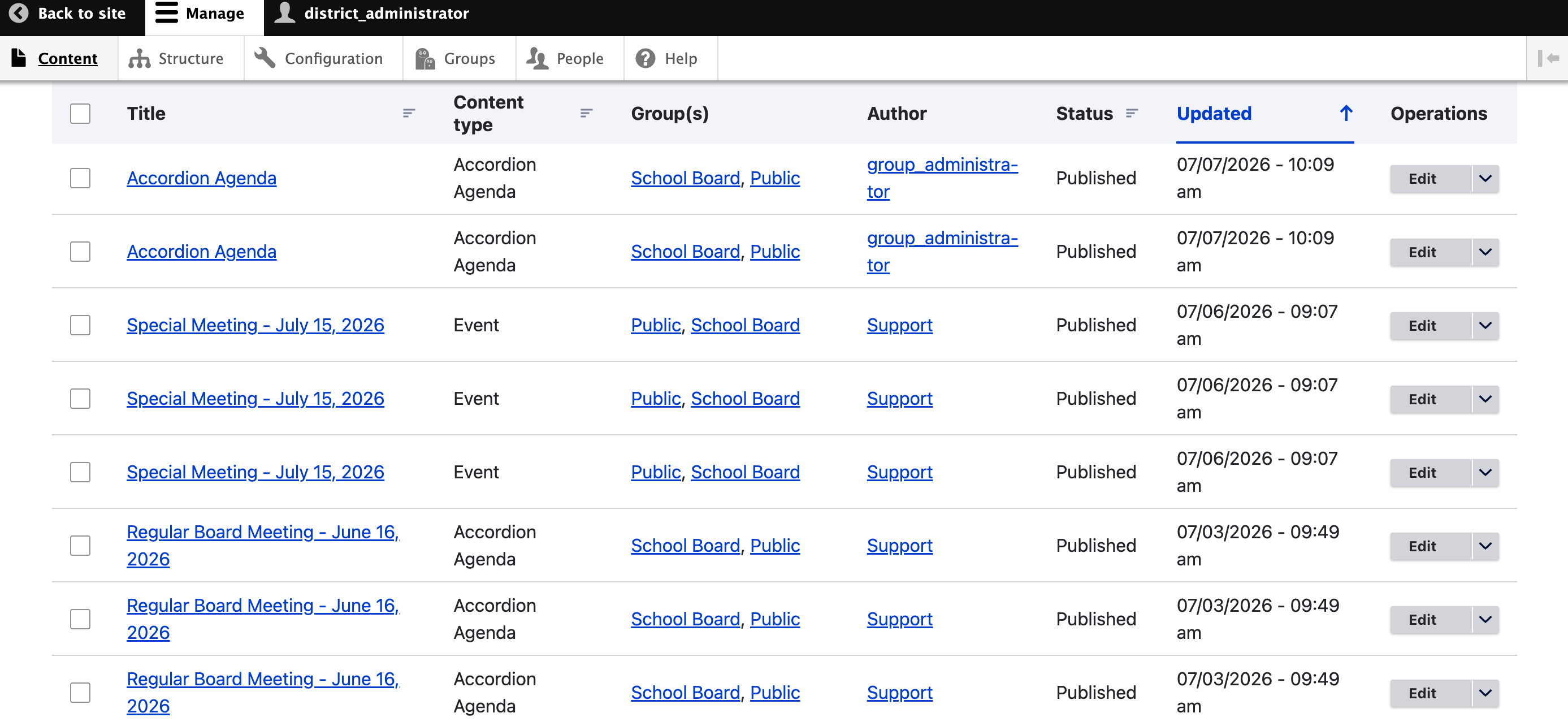
Figure SB-DST-024. Search all site content and compare revisions.
Before recreating an agenda, always check the Content list to determine whether it already exists.
Choose the newest revision
When revisions are enabled, several entries may have the same title. Compare the Updated date and time and open the most recent entry. Confirm its publication status and assigned Group. Do not delete older entries until the current published version has been confirmed.
Verify the Group assignment
Every agenda must be assigned to the intended Board or committee group. An agenda assigned to the wrong group—or to no group—may disappear from the expected group page, be unavailable to its Group Administrator, or fail to reach the intended notification audience.
Correct the Group assignment and verify the agenda from the group page before recreating content.
Fastest first check
For “Where did my agenda go?” questions, check Content, the newest Updated date, publication status, and assigned Group first.