Add and edit users
Search before creating an account. Email addresses and usernames must be unique.
Add a user
- Open People and select Add user.
- Enter the person's Email address.
- Enter a unique Username.
- Enter the initial password in Password and Confirm password.
- Confirm that the passwords match.
- Select Active unless access must remain unavailable.
- Select Notify user of new account only when the email address is verified and the account is ready.
- Leave optional settings at district defaults unless a documented requirement applies.
- Select Create new account.
- Search for the username and verify the result.
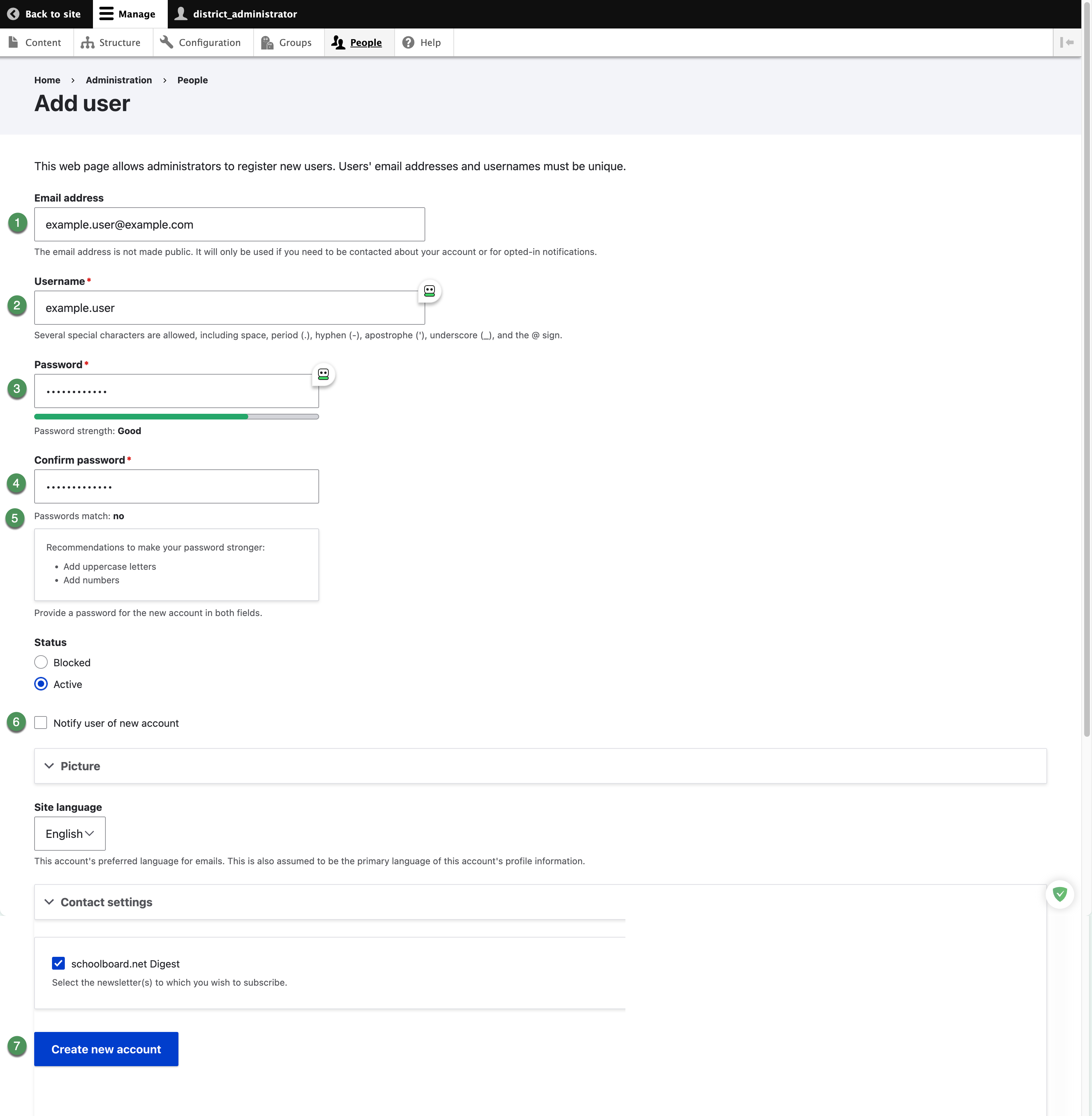
Figure SB-DST-006. Add user form.
Group access
Creating the account does not necessarily provide access to private Board materials. Add the user to each approved group separately.
Edit a user
- Find the correct account on People.
- Select Edit.
- Change only fields supported by an approved request.
- To reset a password administratively, enter the new value in both password fields.
- Use Status to select Active or Blocked.
- Select Save and verify the People list.
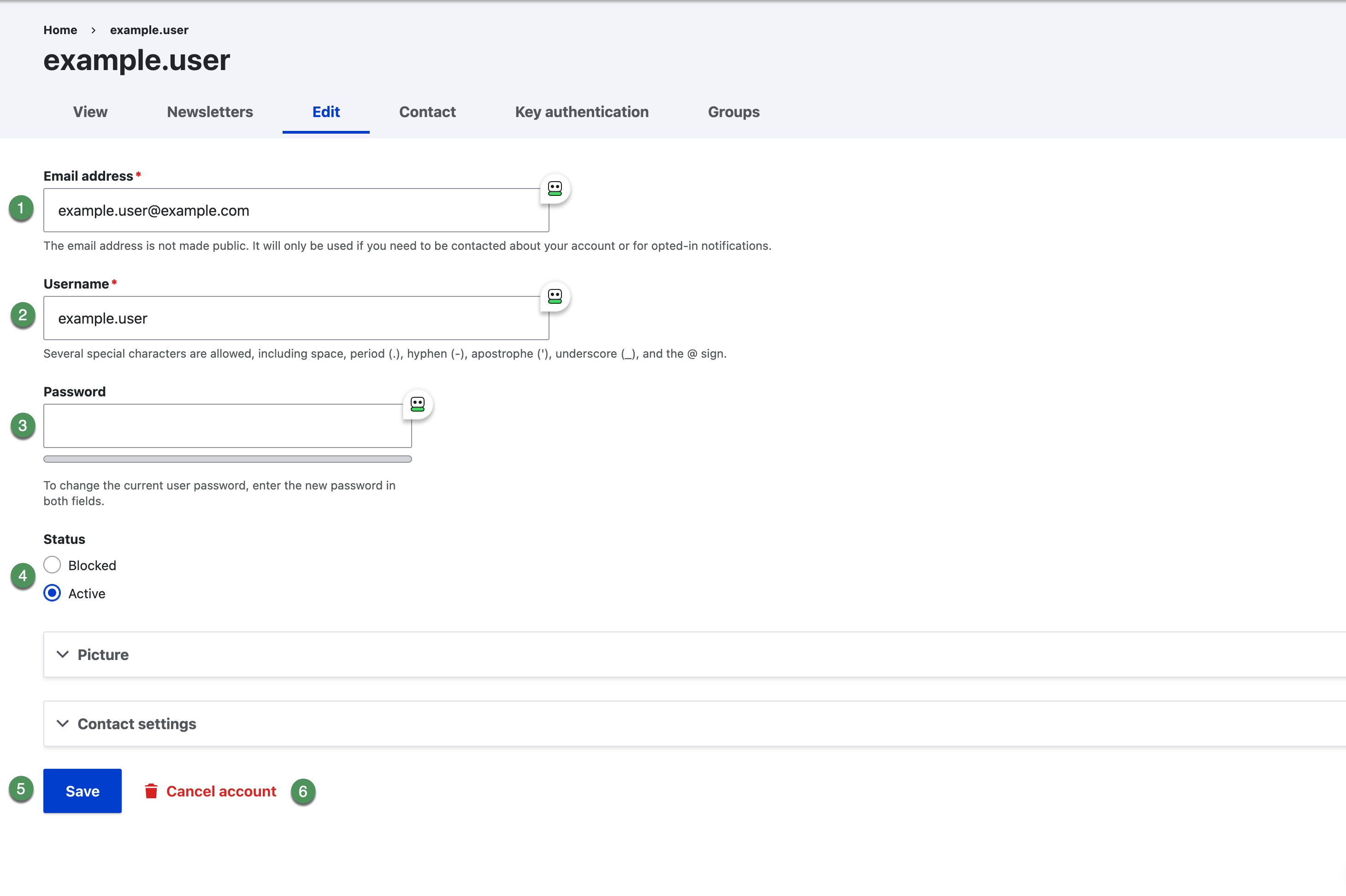
Figure SB-DST-008. Edit user account.
Account cancellation
Cancel account is separate from blocking and may be destructive depending on site configuration. This guide recommends blocking when reversible suspension is sufficient.