Group memberships
Use a group's Members tab to review, add, edit, or remove membership.
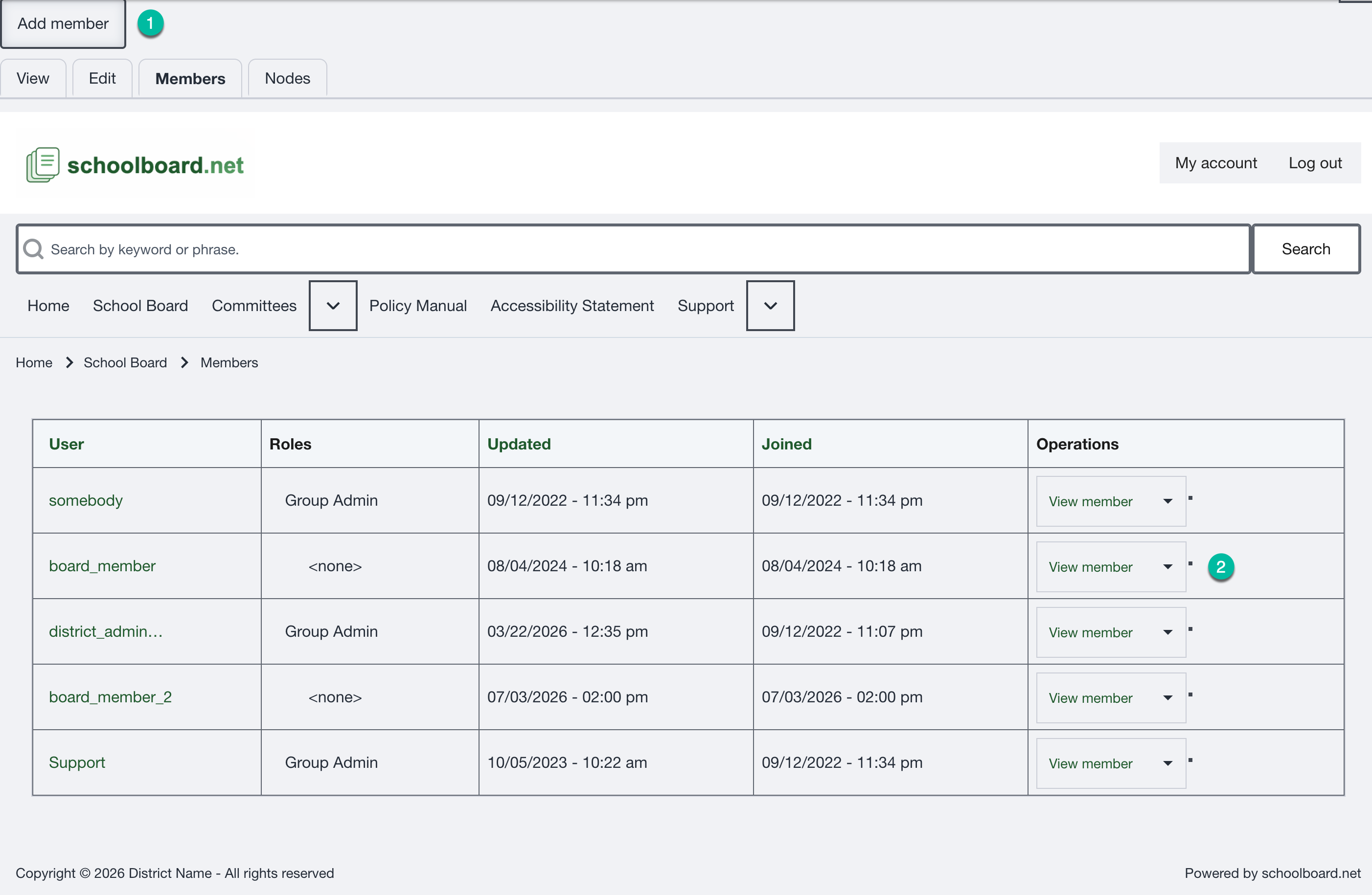
Figure SB-DST-014. Group membership list.
Add an existing user
- Confirm that the account exists and is active.
- Open the correct group and select Members.
- Select Add member.
- Begin entering the username and select the correct autocomplete result.
- Leave URL alias empty unless the district has an established reason to use it.
- Select Group Admin only when approved.
- Select Save and verify the Members list.
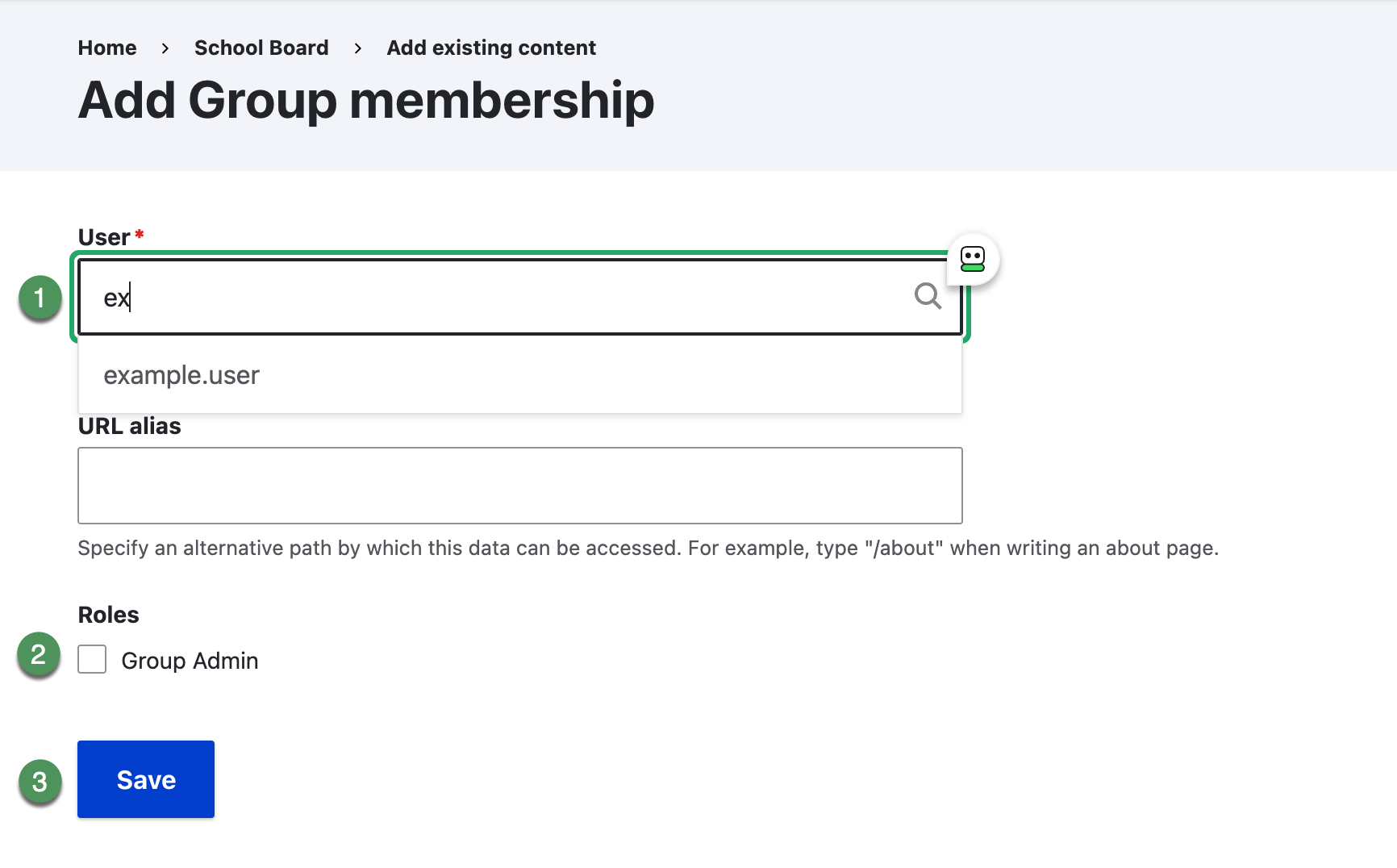
Figure SB-DST-016. Add an existing user to a group.
Edit a membership
- Open the operation for the correct member and select Edit.
- Select or clear Group Admin according to approved access.
- Leave URL alias unchanged unless a documented requirement applies.
- Select Save and verify the role.
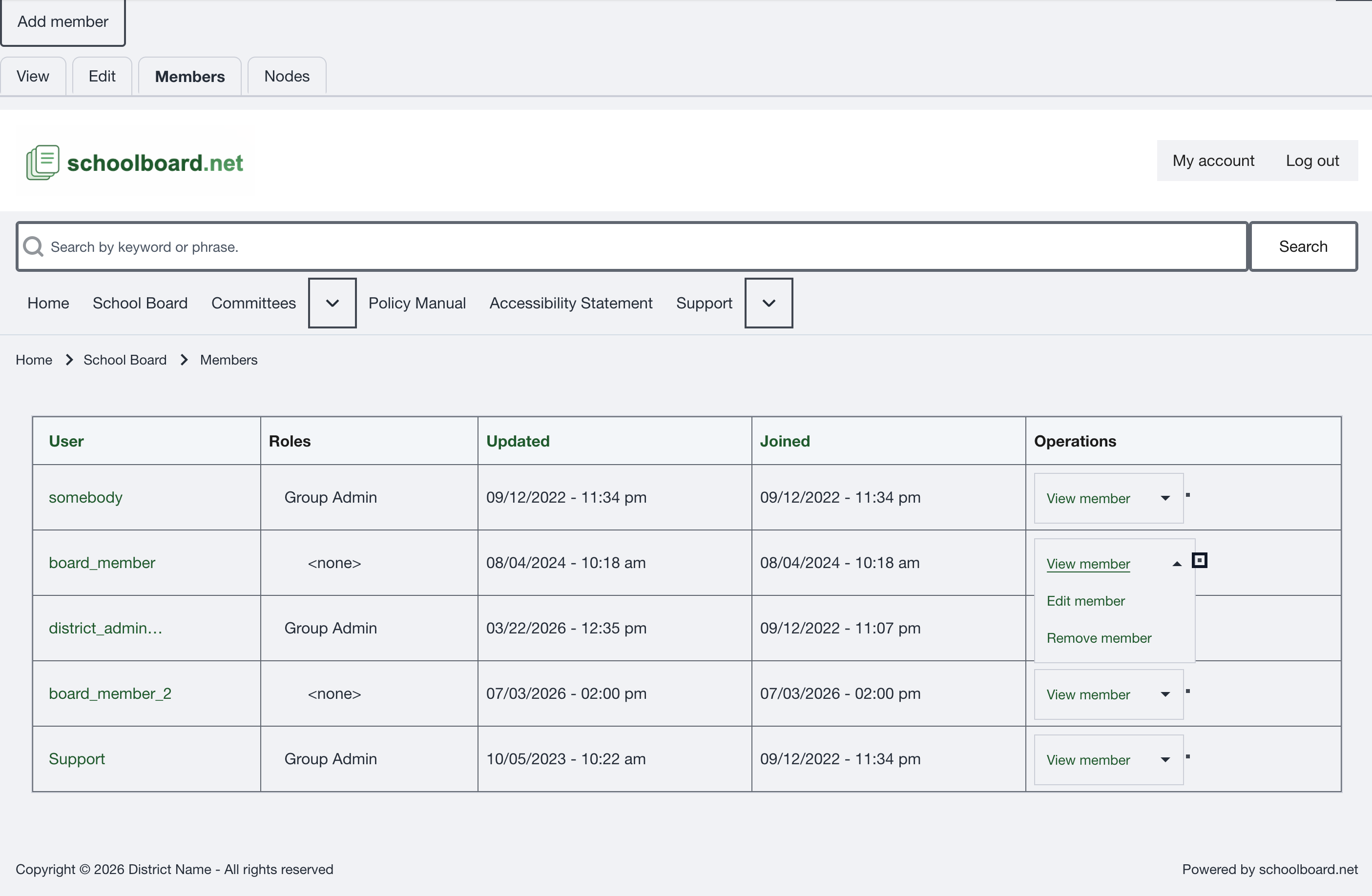
Figure SB-DST-017. Open the membership Operations menu.
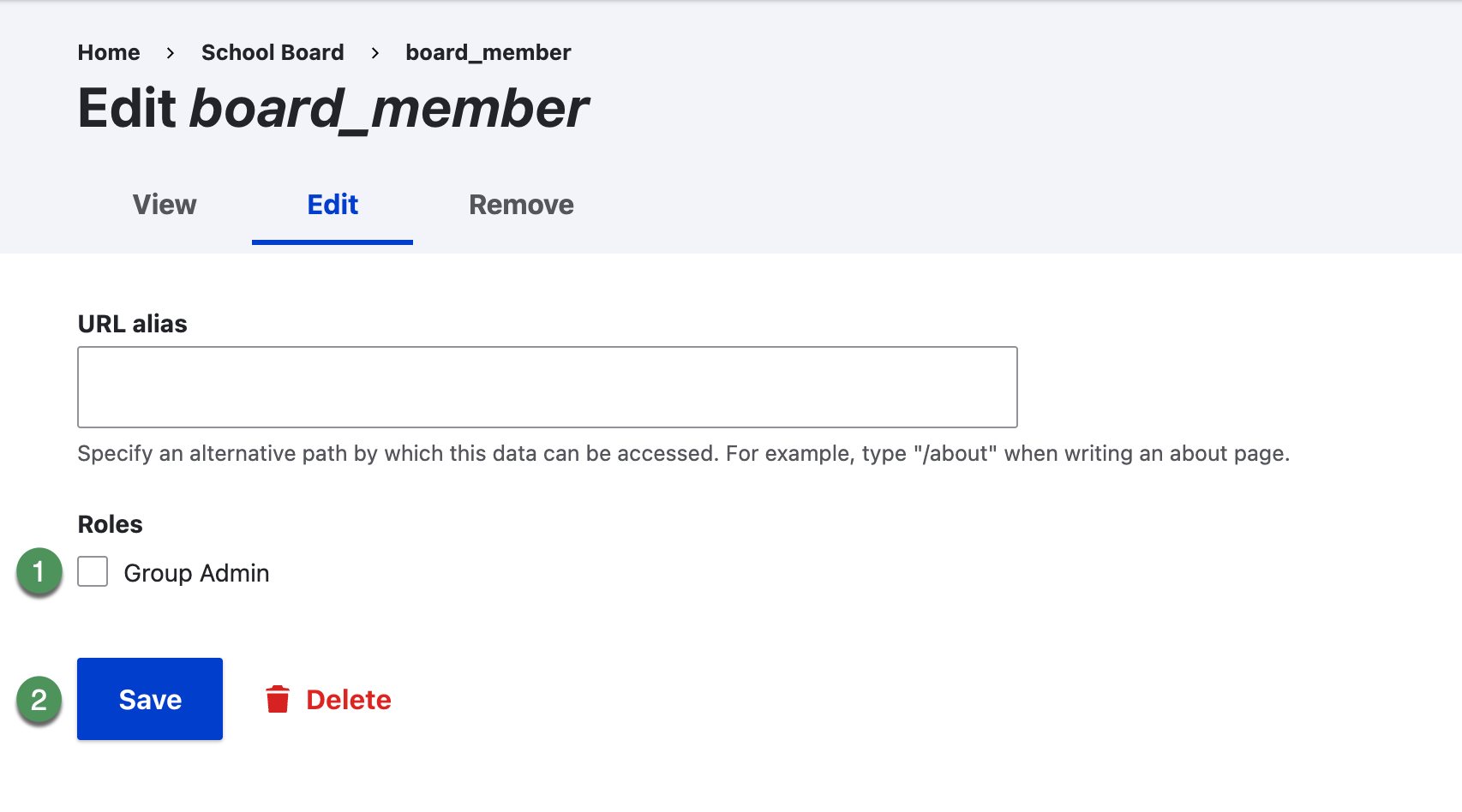
Figure SB-DST-018. Edit a group membership.
Remove a membership
- Confirm the username and group.
- Open the membership operation and select Remove.
- Read the confirmation.
- Select Delete to remove the membership or Cancel to leave it unchanged.
- Verify the Members list.
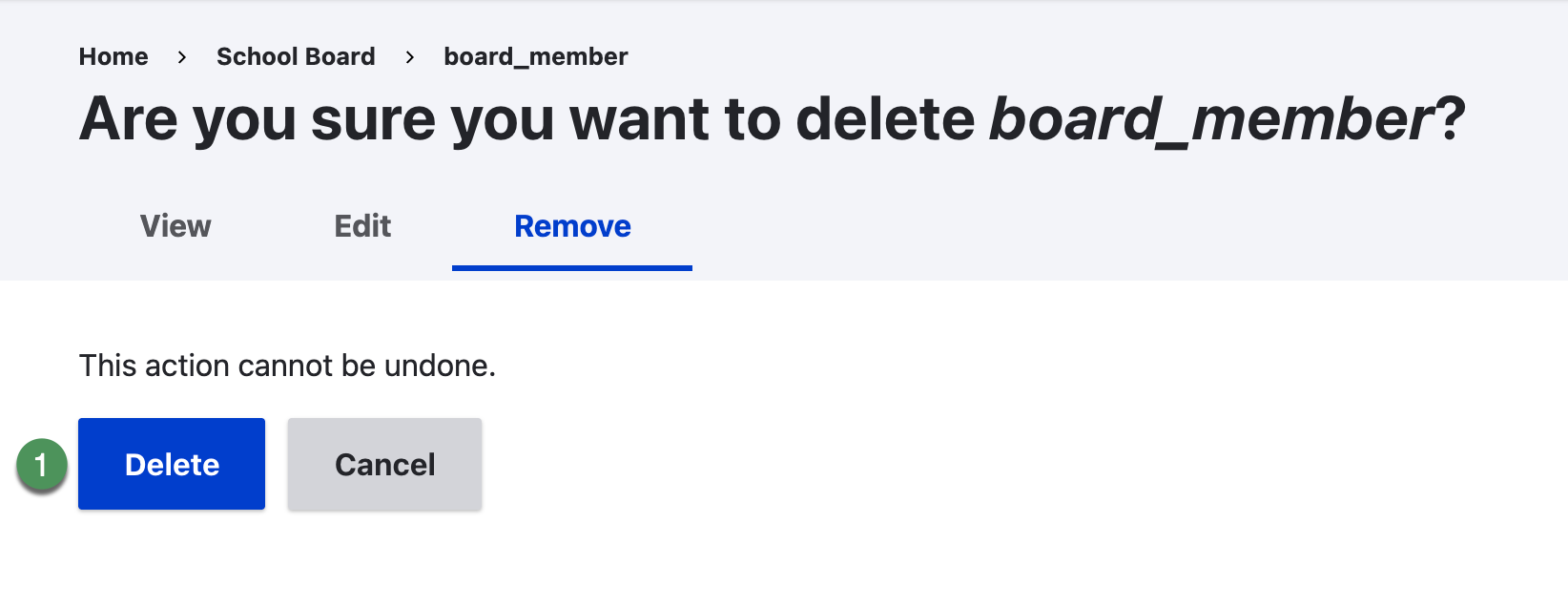
Figure SB-DST-020. Remove a group membership.
Membership versus account
This procedure acts on the group membership. It is separate from blocking or cancelling the user account. Reviewers should confirm that the confirmation wording is sufficiently clear.