Troubleshooting Authoring Problems
Spelling suggestions do not appear
schoolboard.net relies on the browser and operating system for spell checking. Confirm that spell checking and the intended language are enabled, work in the normal visual editor rather than Source view, and refresh or reopen the form after changing browser settings.
Follow Browser Spell Check and Proofreading for Chrome, Edge, Safari, iPad and iPhone instructions, privacy considerations, and the complete troubleshooting sequence.
The content is locked for editing
schoolboard.net locks content while an administrator is editing it so another administrator cannot overwrite the work.
If a lock warning appears:
- note the name of the editor and how long the lock has been active;
- contact the named editor;
- ask the editor to Save the work or select Unlock if no changes were made; and
- reopen the content after the lock is released.
If the lock remains stuck, contact a District Administrator. Only a District Administrator may break another user's stuck content lock. Breaking the lock is a last resort, and the District Administrator must first confirm that nobody is editing the content and that no unsaved work needs to be preserved.
For the complete procedure and screenshots, see Edit Locks and Safe Agenda Editing.
A 403 — Access Denied message appears
A 403 message means the content exists, but the current account does not have permission to view or edit it.
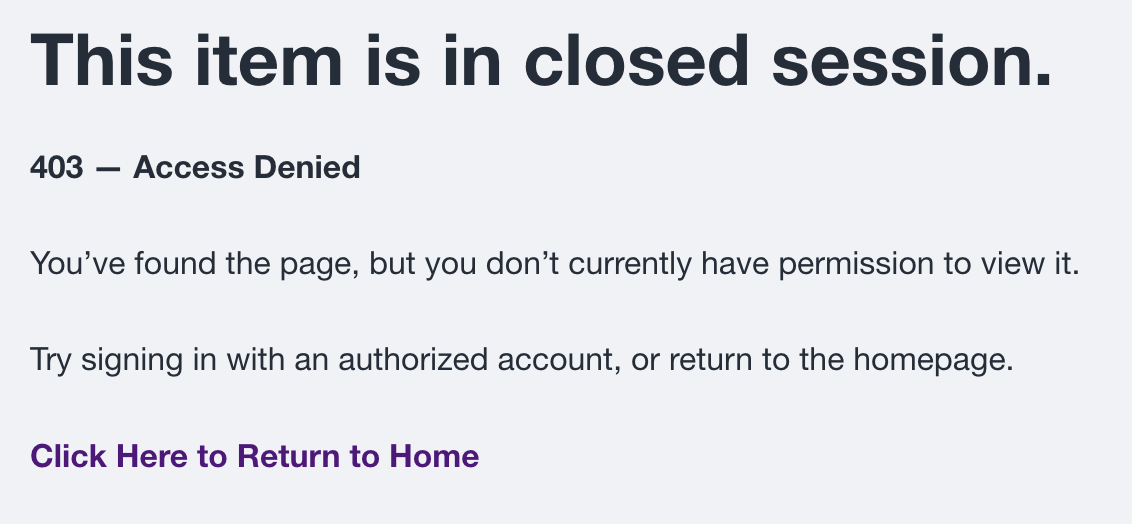
Confirm that the correct account is signed in, that the author is assigned to the correct Group, and that the content belongs to that Group. Contact a District Administrator rather than attempting to work around the access restriction.
A 404 — Page Not Found message appears
A 404 message means the address does not currently lead to an available page. The content may have moved, been archived, become unpublished, or use an outdated link.
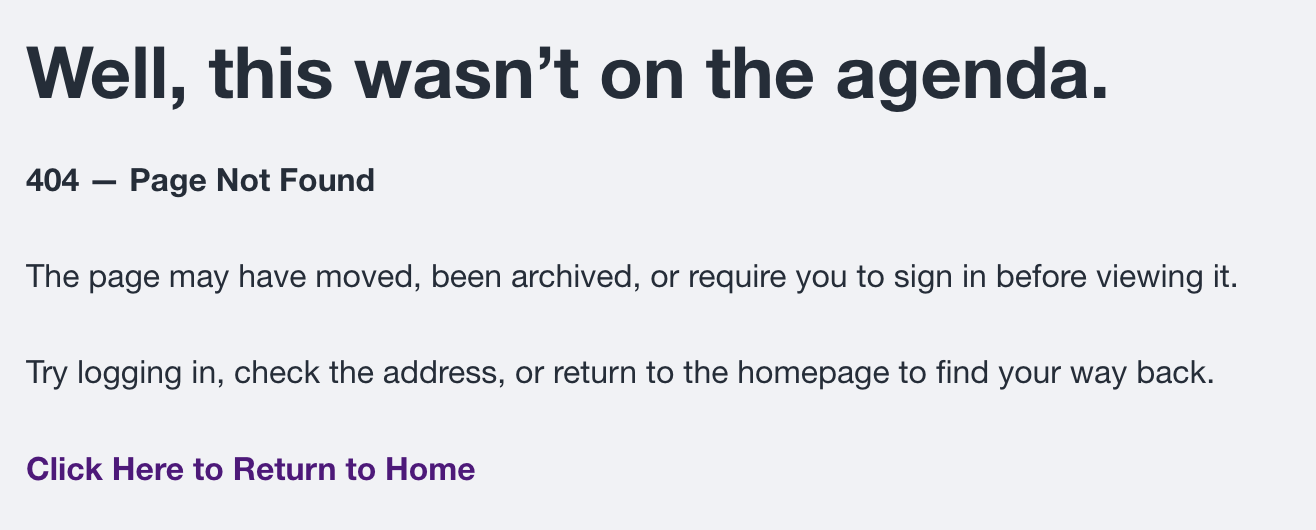
Return to the Group or administrative Content list and locate the item again. Ask a District Administrator to verify the newest revision, Group assignment, visibility, and publication status. Do not recreate the content until the original has been located or confirmed missing.
Pasted text has the wrong font, size, or spacing
Remove formatting or paste the affected section as plain text. Reapply only the headings, lists, links, tables, and emphasis that carry meaning.
Extra blank space appears
Look for empty paragraphs, repeated line breaks, paragraph spacing copied from the source, or layout tables. Remove the unnecessary elements and review the saved page.
A list restarts or indents incorrectly
Remove the broken list formatting and recreate the list using the editor's numbered or bulleted list control. Do not type the numbers, bullets, tabs, or spaces manually.
A table does not fit on a phone
Remove fixed widths and unnecessary columns. Simplify the table, split it into smaller tables, or rewrite the information with headings and lists. Complex tables may require an accessible supplemental file and an on-page summary.
A heading is missing from navigation
Confirm that the text uses an actual heading level rather than bold or enlarged paragraph text. Check that heading levels are logical.
A link is read as “click here”
Edit the linked words so they describe the destination, document, or action.
The saved page differs from the editor
Word-processor markup may still be present. Clean the affected section, reapply the necessary structure, save in Draft Mode, and inspect the result again.
The source and HTML do not match
Stop publication. Compare names, dates, figures, links, headings, quotations, and legally significant text with the approved source. Correct the HTML and obtain another review when needed.
You are unsure what to remove
Preserve meaning and ask before guessing. Contact the District Administrator or schoolboard.net Support with the source file, affected page, expected result, and a screenshot when appropriate.