Accessibility and Help
schoolboard.net documentation and district sites are designed to support keyboard navigation, responsive layouts, structured headings, meaningful links, and accessible on-page content.
Use keyboard navigation
- Press Tab to move forward between interactive controls.
- Press Shift+Tab to move backward.
- Press Enter to open a link.
- Press Enter or Space to operate agenda headings and buttons.
- Use a visible skip link to move directly to the main page region when it appears.
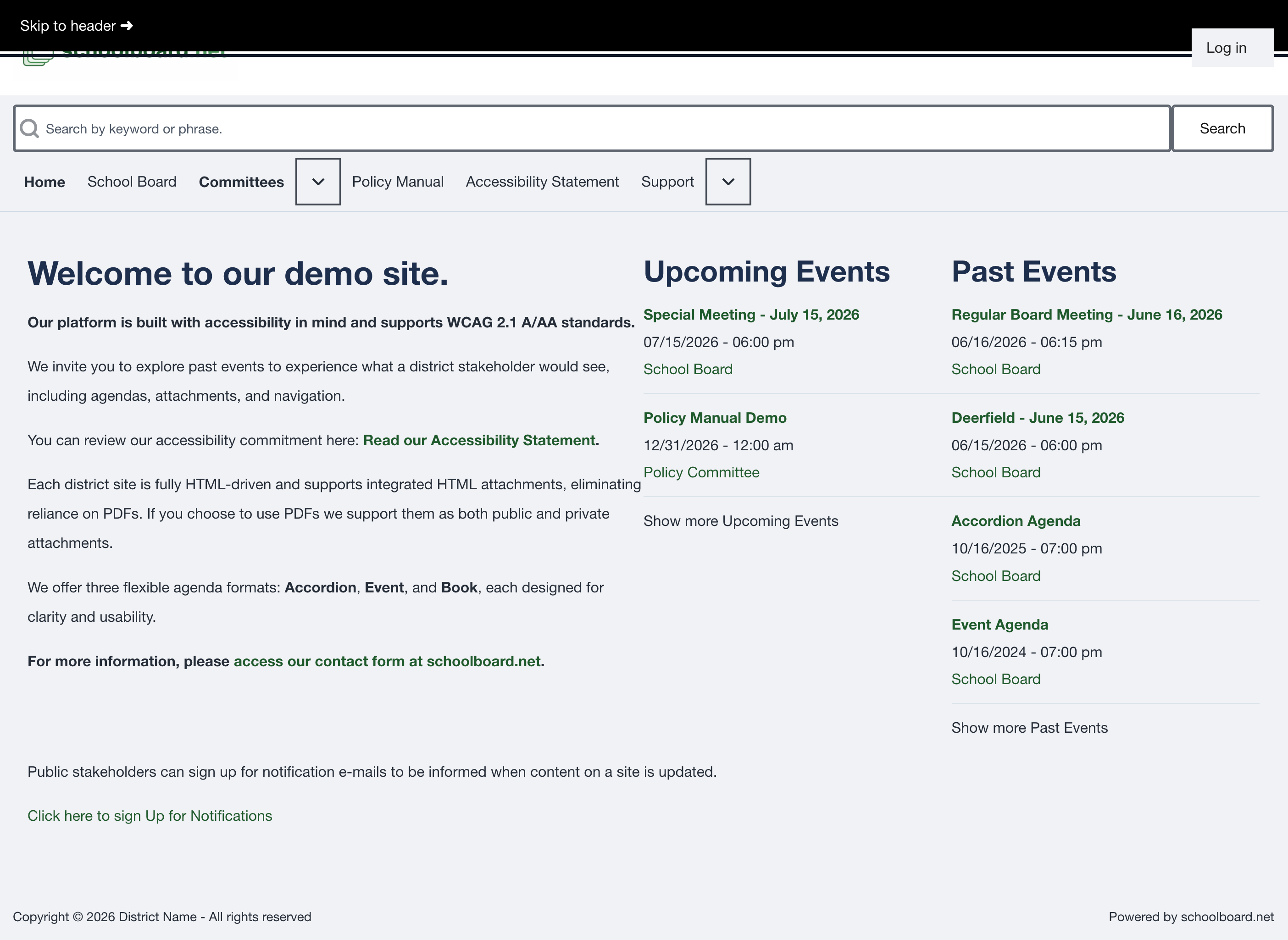
Keyboard focus reveals the skip link.
Use the site at different sizes
The site adapts to desktop, tablet, phone, and browser zoom. On smaller screens, navigation choices may move behind menu buttons. Page content remains available without requiring horizontal scrolling under normal responsive use.
Prefer accessible on-page content
When an agenda provides a Read... control, select it to open accessible HTML content directly on the page. A downloadable file may also be available.
Find accessibility information
Use the district site's Accessibility Statement for the district's accessibility commitments, contact method, and instructions for requesting assistance or an alternative format.
The Public User Guide explains how to use and obtain help with the site. Detailed legal, policy, and technical compliance determinations belong to the district and are not repeated in this public task guide.
Request an accessible alternative or assistance
If content is difficult or impossible to use:
- Use the contact identified in the district's Accessibility Statement or Support page.
- Identify the meeting, page, agenda section, document, link, or control.
- Describe the format or assistance that would let you obtain the information.
- State when the information is needed, especially when it relates to an upcoming meeting, deadline, or district service.
- Provide a preferred contact method.
You do not need to diagnose the technical cause before asking for assistance.
Report an accessibility barrier
Include:
- the meeting title and date;
- the page address;
- the browser and device;
- assistive technology, when applicable;
- the affected link, control, heading, or document; and
- what happened and what you expected.
Specific information helps the district investigate and respond more quickly.
Do not send passwords, private Board materials, student records, or other confidential information when reporting a public accessibility barrier.
Understand 403 and 404 messages
403 — Access Denied
A 403 message means the page exists, but you do not currently have permission to view it. The item may be limited to authorized Board or Group members.
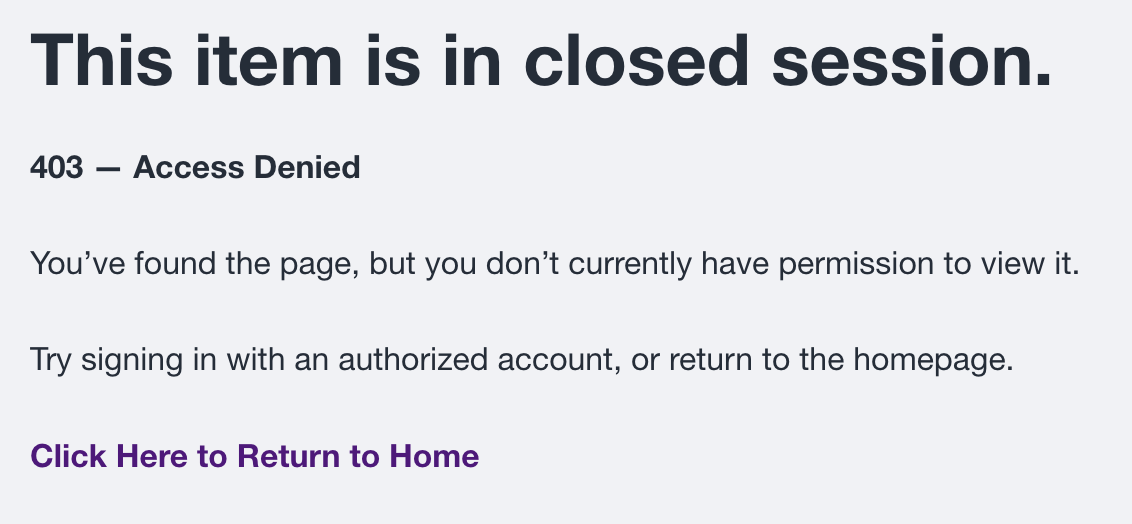
- Sign in with an authorized account if you are a Board or Group member.
- If you expected the information to be public, return to the district home page and contact the district.
404 — Page Not Found
A 404 message means the address does not currently lead to an available page. The page may have moved, been archived, become unpublished, or require you to sign in.
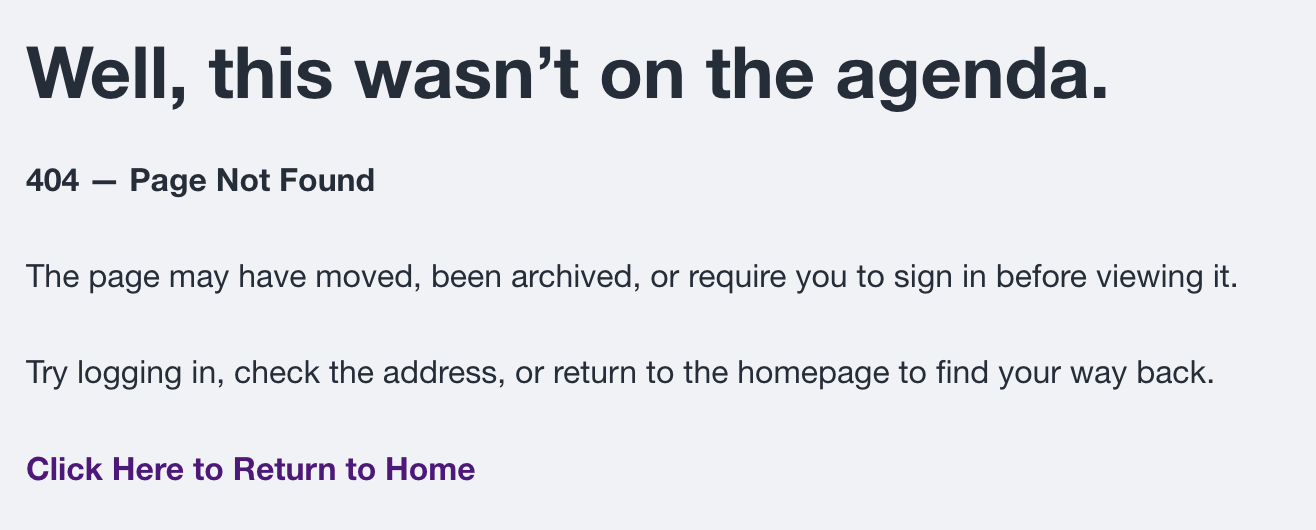
- Check the address or open the meeting again from the district or Group home page.
- Sign in if the content may require an account.
- If a district link led to the error, report that link to the district.