Find a meeting
Open meetings from the current site so you can confirm the date and use the latest published version.
Navigate the signed-in site
The header provides your account controls, site search, and primary navigation.
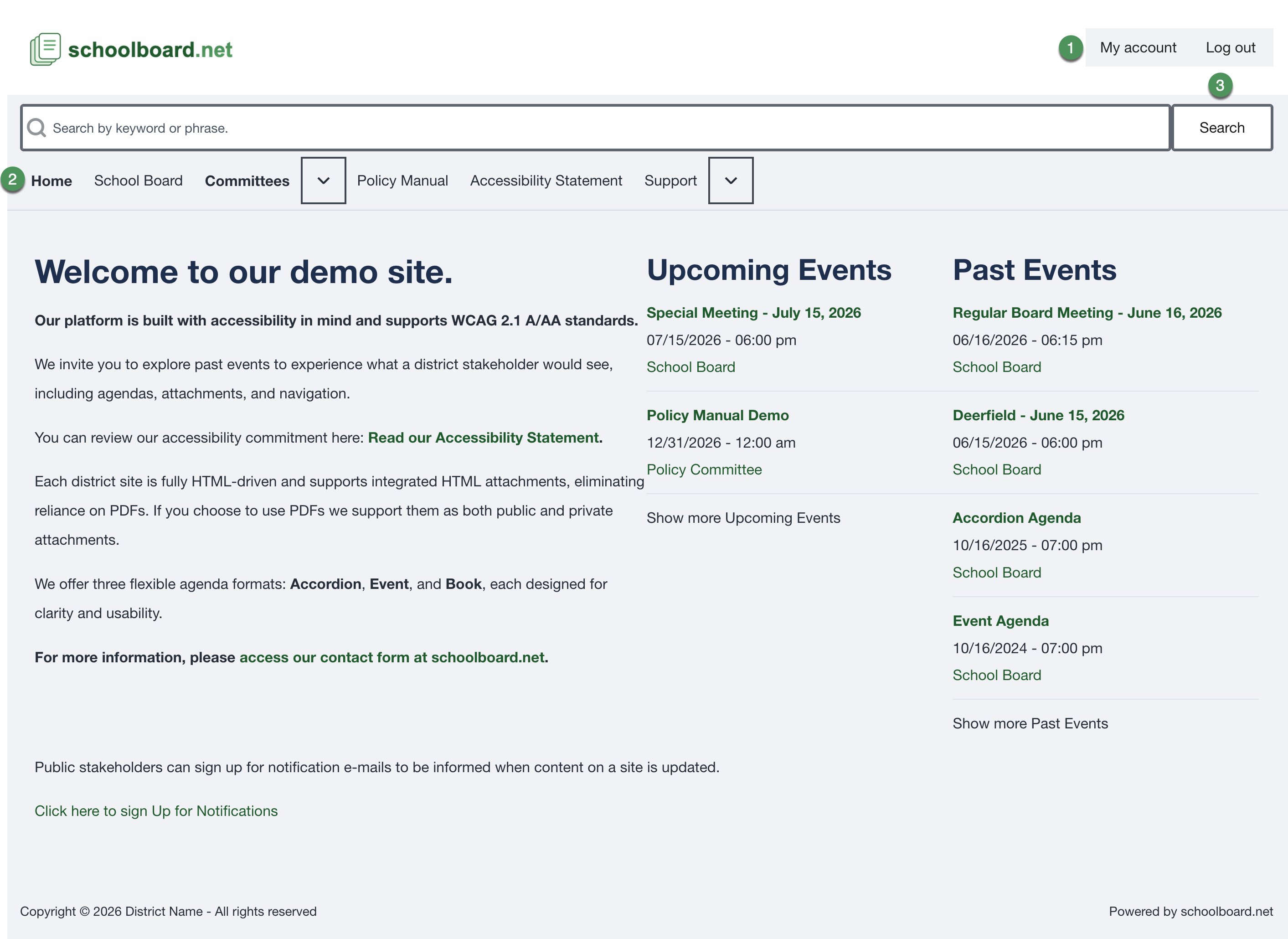
Figure SB-BRD-007. Logged-in navigation and account controls.
Open the correct meeting
- Select Home.
- Look under Upcoming Events for a future meeting.
- Look under Past Events for an earlier meeting.
- Use Show more Upcoming Events or Show more Past Events when needed.
- Select the meeting title.
- Confirm the meeting date, time, and Board or committee name.
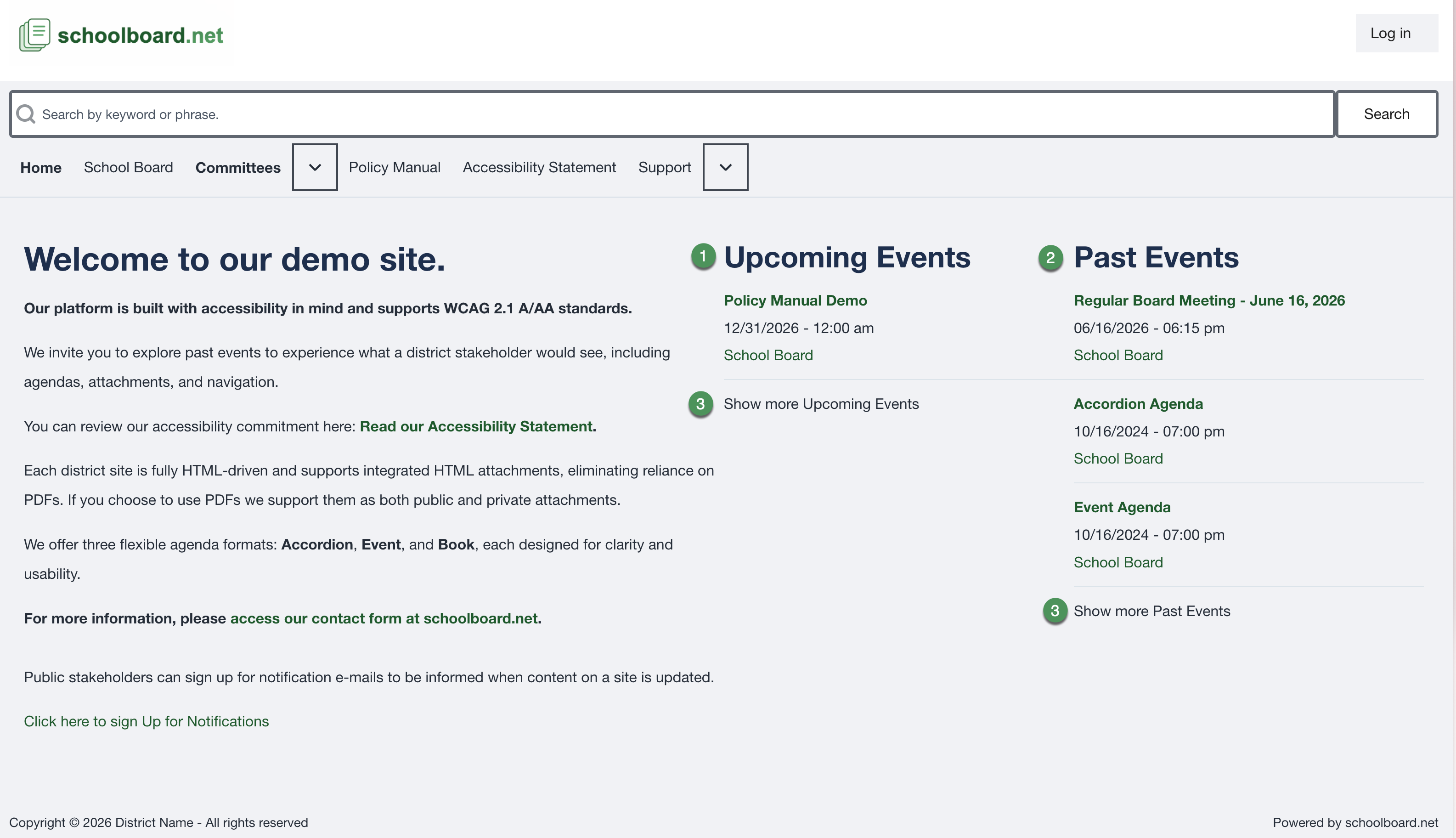
Figure SB-BRD-008. Upcoming and past meeting lists.
Confirm the agenda
Check the meeting title and date before relying on the agenda or an attachment.
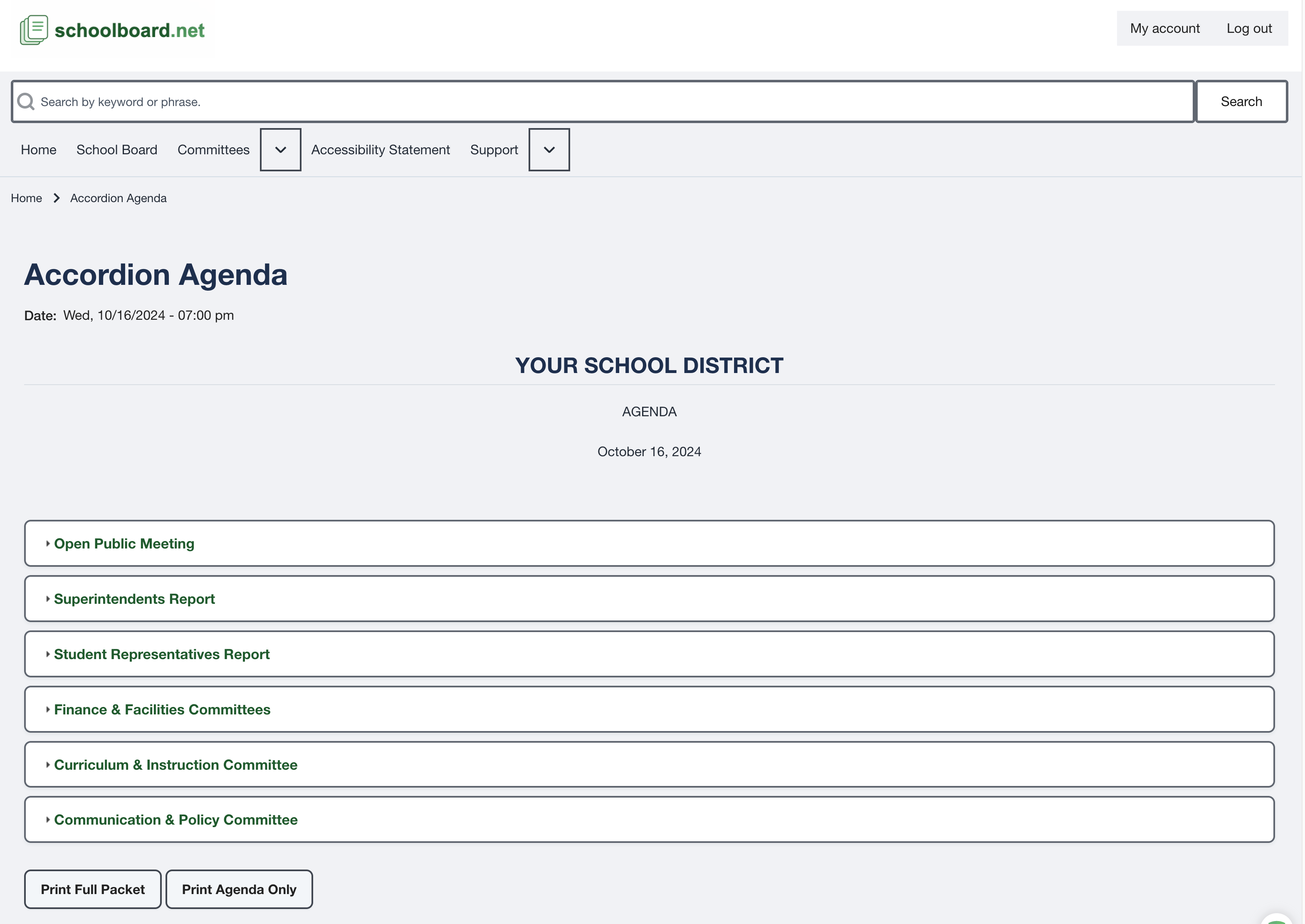
Figure SB-BRD-009. Accordion Agenda header.
Tip
Meeting titles can be similar. Confirm the date every time, especially when reviewing a downloaded or printed copy.
Related Topics
Revision History
| Version | Date | Status | Summary |
|---|---|---|---|
| 1.0 | 2026-07-13 | Review Draft | Online meeting-location procedure with approved navigation and agenda captures. |